Many apps work on a subscription basis now, many of which are some of the largest and most popular apps and programs. However, one of the problems with app subscriptions is that it is quite difficult to track when subscriptions on various apps run out. I pay £0.79 a month for iCloud, which is a very low price, and I often forget about buying it. However, when I add my Evernote and Todoist Premium subscriptions, domain names and more, the price really adds up. It’s difficult to track when all of these things expire, as they are all based across different platforms, with different expiration dates, and different prices. It’s a struggle to get on top of all of these different subscriptions.
Outflow is a great solution to this problem – you can easily add apps, and then see how long until you need to pay for that subscription again. Outflow allows you to get notified based around your subscriptions renewal date, so you won’t forget to pay it again. Outflow has many more features, and is a great choice if you want an app to track your expenses.
Evernote has just released a new public beta feature for Evernote Web, which allows you to quickly and easily take meeting notes that are pulled from your Google Calendar, and these notes are automatically filled in with location, time, description and participant information from your calendar.
Yesterday, the Apple Keynote at WWDC took place, and iOS 11 was announced. iOS 11 comes packed full of great new features for the iPad, including drag and drop, a dock, and many more improvements and changes.
I will be concentrating on the major iPad updates in this post, as that’s where the most change is, and it’s most likely what will interest people the most.
Gaming is one of the most popular things, and mobile devices are a great way to play games. The Steelseries Nimbus is a Mfi controller for all Apple devices – from the iPhone to the Apple TV, the Steelseries Nimbus allows you to control your favourite games with a Xbox or PS4 like controller.
I’ve been using the Steelseries Nimbus to control all of my favourite games since I received it, and I’ve found that games are really enhanced by using a controller. If you play a lot of games on your iPad, iPhone and Apple TV, you want to check out the Steelseries Nimbus.
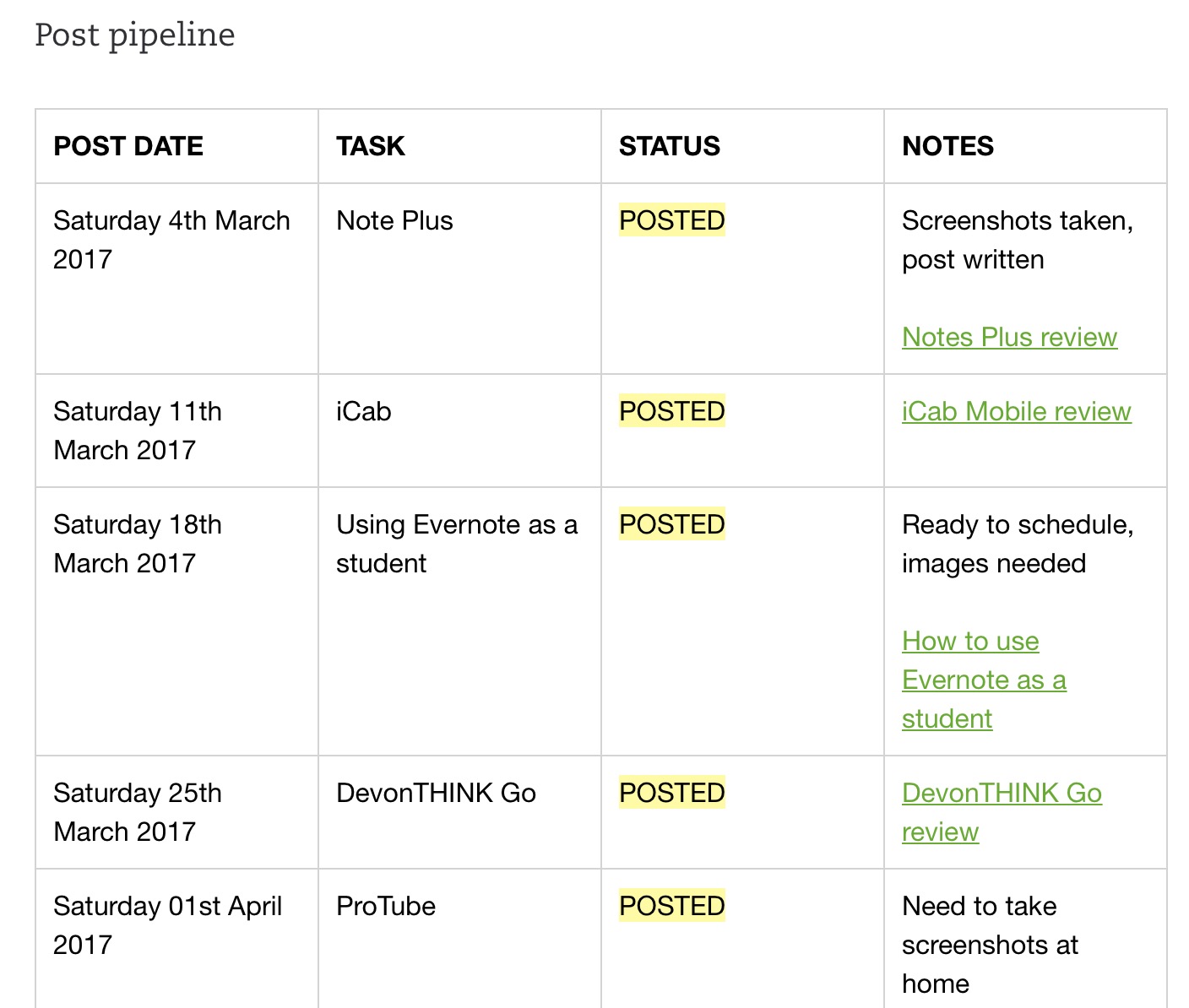
Pipelines are a way of planning and organising your work – a visual todo list, ordered by what is due at the closest date. They are a great way to quickly see what you need to do in a glance.
With pipelines, you can see all your tasks ordered by the deadline with a quick glance. It’s easy and quick to set up pipelines, so make sure to keep reading!
If you find yourself always getting distracted by your phone or websites, Forest can help you out. Start growing a tree, and if you leave the app, your tree gets killed. It’s a great way to stay on task and focus!
You can enter via the form below, and get higher chances by completing more things such as commenting, retweeting and so on.
The winners will be contacted on the 4th of June, 2017 by the email address they added. You must reply within 24 hours of the email being sent to you, or the code will be given to someone else. Good luck!
Email’s are a large part of people’s lives, and there are so many choices for an email app out there. I manage three email accounts on a regular basis, two of which have many emails incoming at all hours of the day. Newton Mail is an iOS, Android, Mac and Windows email application that aims to help you tackle your email, with some powerful features that are under a simple interface, such as read receipts and app integrations.
I reviewed PDF Expert 5 around a year ago, and I was really impressed with it. The Readdle team have released a new major update for it, PDF Expert 6, which boasts a new design, better search, and the ability to edit PDF text, images and links as if they were a Word document – something that I haven’t found on any other program, whether that is on desktop or mobile.
The major feature of PDF Expert 6 is something that I haven’t found on any platform or program, and is a great selling point of PDF Expert 6. You can edit and modify the text in PDFs, add and replace images, and add links to text and pictures. One reason that people may not like PDFs is the inability to edit them – however, PDF Expert has some magic worked into it that allows you to edit that PDF. If the PDF you got sent has sensitive information, you’ll be able to hide that to prevent other people from seeing it. I’m really impressed by this, and it certainly is a great new feature of PDF Expert 6, and will be a major selling point for the app. The PDF editing feature does come as a £10 in app purchase, but it is for people with a very specific use case, and not all people would need this ability.
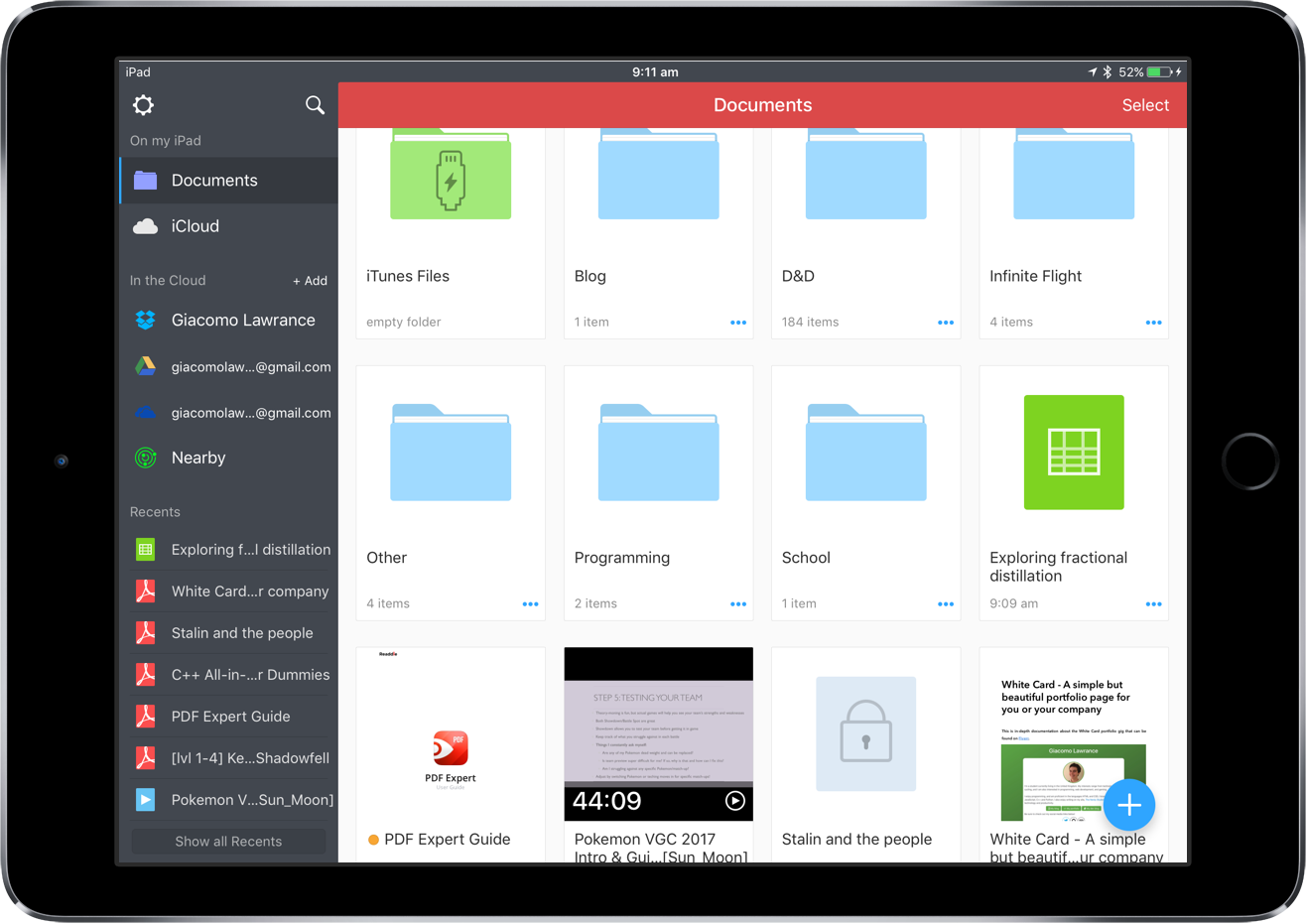
PDF Expert 6 has an all new interface, which allows you to do more complex actions such as batch moving files, creating .zip files, tagging, and syncing files in fewer taps. I found that moving multiple files in the old PDF Expert 5 was quite cumbersome, however in the updated version, I can easily move 100 PDFs into a new folder. I can also zip these 100 PDFs into a file that I can easily email or share to other people.
Unzipping can also be done in PDF Expert – simple import a .zip file, and when you tap on it all the individual documents in that file are extracted into the folder with the zip. I work with zip files a lot, and found that whilst Workflow offered a good but clumsy solution, it was still pretty difficult to work with PDFs on iPad. However, now I can simply import the zip into PDF Expert, tap on it, and it’s extracted. Great!
Another change that I quite like is the larger file preview thumbnails. These allow you to see the contents of a file such as a PDF or a spreadsheet. The Readdle team has made the icons bigger, and this lets you quickly glance at the contents of a file. I have found that it does take a while for the spreadsheet or PowerPoint preview to come up.
Readdle has added great support for working with documents that are stored in the cloud. If you use Dropbox, Google Drive, Box or OneDrive to store your files, you can allow PDF Expert 6 to access those cloud storage providers, and you can edit your documents in there without downloading the document, saving both time and data usage. There is also a noticeable improvement in the cloud sync speed, which is also a great improvement.
If you work with sensitive data, you’ll be glad to know that you can password protect individual PDFs. Note that there is no way of recovering the password if you forget it, so you need to be careful and not forget it. The individual document protection does also not work with Touch ID, and it would be great if it did. You can also protect the whole of the app by setting a password, and this does work with Touch ID.
Search has also been enhanced with the new update. You can search through different file types, and you can also select whether you want to search the file content, or just the file titles.
Another change that the Readdle team has added to PDF Expert 6 is the ability to edit outlines. Outlines are like a table of contents in a large document – they let you easily move around the document, and find where certain things are. You can now change where the landing page of an outline is, as well as the name, and the order of outlines. Whilst this feature may not appeal to everyone, it’s very useful if you work on large documents.
I’m really impressed with the new update, and I think that PDF Expert 6 is now the best PDF and file manager that you’ll find for iOS. It’s got a simple interface, and it’s very easy to learn how to use it. However, it has the power of a desktop class application. If you want a way to manage your files on iOS, you won’t find a better app that PDF Expert.
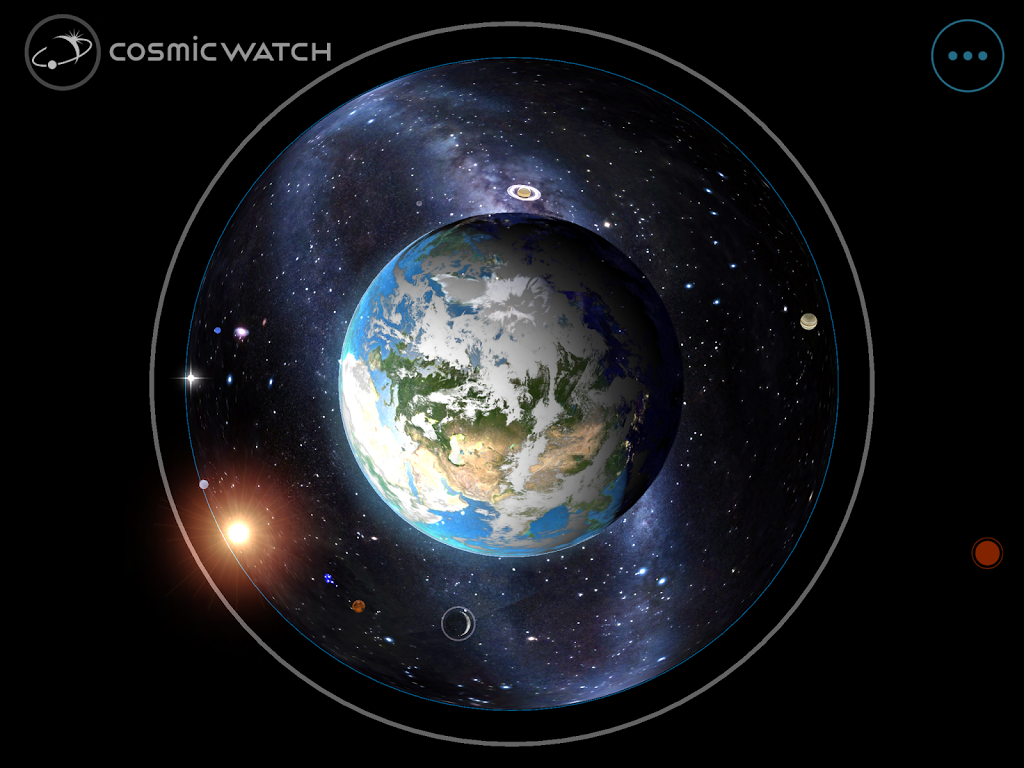
Cosmic Watch is a great looking real time world-clock, which shows you positions of planets in the solar system, star charts and so much more. It shows these above the beautifully rendered earth, and allows you to select and view times in various places in the world.
If you are a fan of astronomy and stars, Cosmic Watch may be of interest to you.
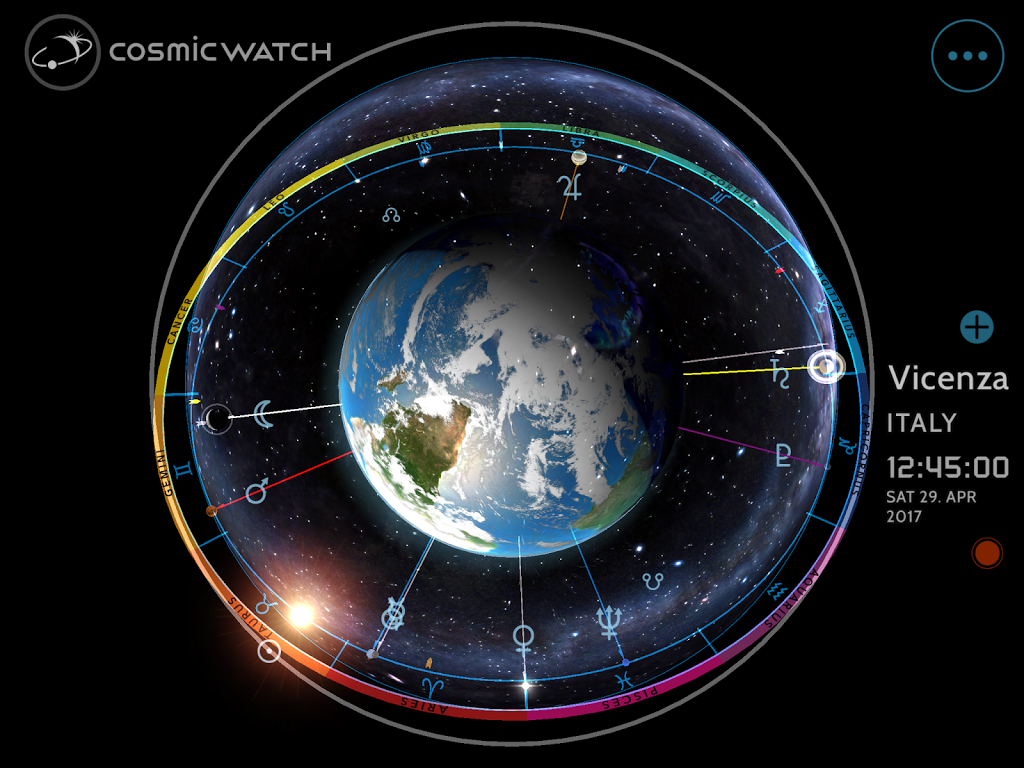
There are three main modes that Cosmic Watch offers you. These are the Clock Mode, the Astrology Mode, Astronomy Mode and the Solar System mode. These can be accessed to the left of the app. Above these modes is the minimal view, which removes overlays from the planet. You can also remove all the other buttons with the button at the top right. This lets you just look at Earth and the positions of planets, and it does look great. There is a search feature, allowing you to search for different places on the earth, and then there is a star icon. The star icon allows you to save favourite locations, such as your nearest city or somewhere where you often visit.
The bottom of the app contains the setting button, and then an icon of a clock. I’ll go into the clock first – I think it’s a really cool feature of the app. With it, you can rewind and fast forward time, and this allows you to see the different positions planets will be in, as well as sunset and sunrise times, and constellations.
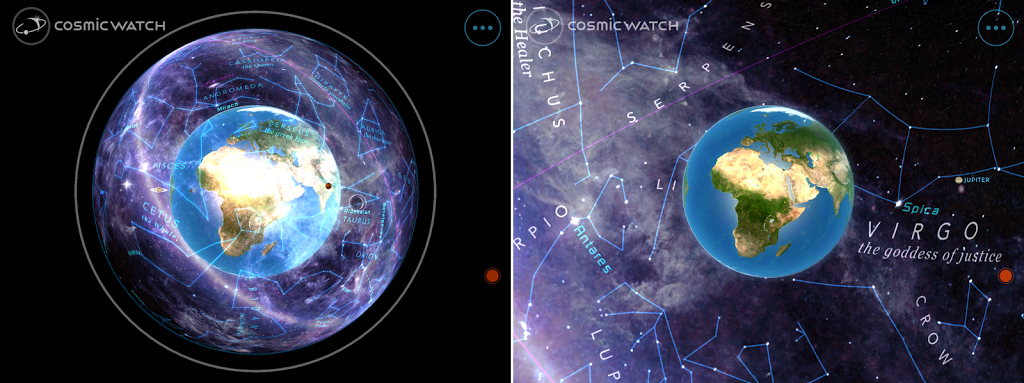
The settings button will allow you to add many more overlays to your view, such as changing the view from a celestial sphere (viewing the planet from the outside, with the constellations in an orb), or the open sky view (viewing the planet with all the constellations outside it), changing the way the earth is shown, adding constellations and many more.
Celestial sphere view (left) and open sky view (right)
Clock Mode shows the local time of the selected location in digitally in 24-hour format, and then analog time is surrounding the earth. Areas that are facing the sun are lit, whilst those that are facing away are dark. The circle around the planet is made up of a few rings, with one having the earth and Sun in their current positions, and then a clock which shows minutes and hours.
The next button is Astronomy mode, where there is a dome with the constellations it. Stars and constellations have name tags, and planets in the solar system are shown at various positions around the earth. However, I have found that it’s pretty confusing if you want to use the app to find constellations. This is because they are the other way around, and you wouldn’t actually see them like this. I think that Cosmic-Watch isn’t very effective as a star map as you are viewing the constellations from the outside, and a star map is best served viewing from the earth’s surface. The open sky partially aids in solving this issue, however it still does not fix it as the earth is still shown, and this gets in the way.
Astrology mode can be accessed by the next button. I’ve never really been interested in astrology, so I didn’t really understand what was going on. The 12 astrological signs are displayed in a ring around the planet, and another ring which is broken down into b=months shows where the sun is. You can use the clock feature to go backwards to when your were born or another date, and see what your star sign is if you like to do that sort of thing.
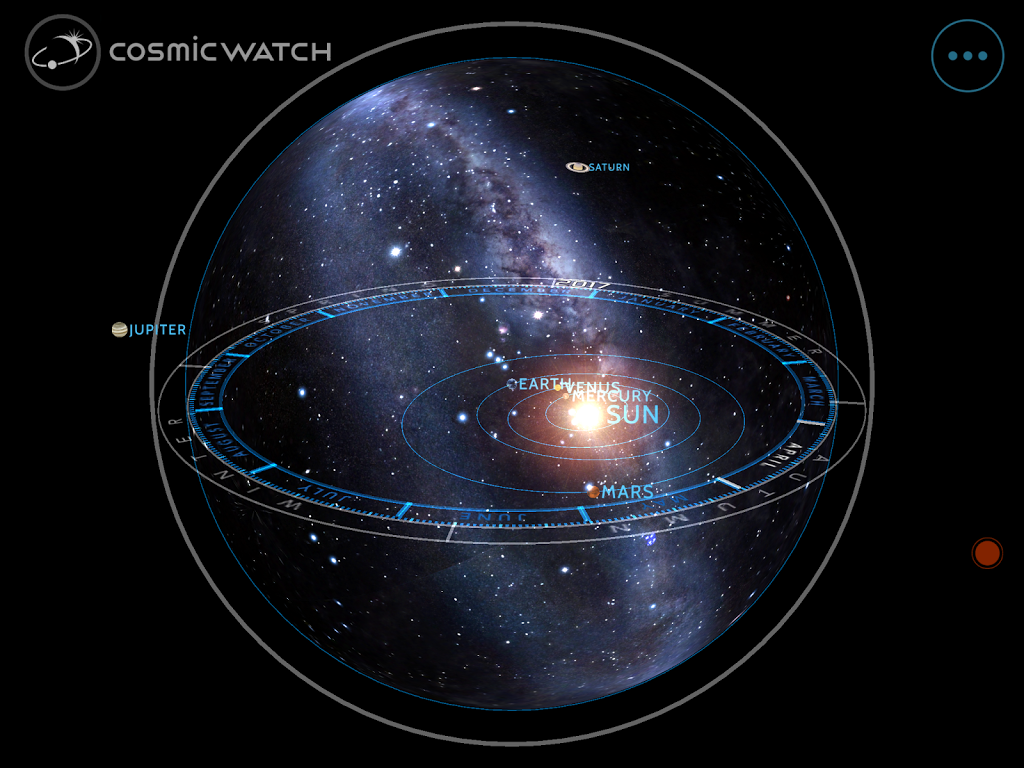
Finally, the solar system mode shows the solar system. The first four planets are shown inside the orb, and the orb has rings around it with the season and month. Other planets are shown outside the orb. Cosmic Watch also offers a geocentric view, which allows you to see the motion of the other planets relative to the earth’s position, and then the topocentric view that shows their motion relative to the point you have selected on Earth.
Cosmic Watch is a beautifully crafted app, and I like the amount of modes it comes with, so you can really explore what is going on around the earth. Whilst Cosmic Watch’s Astronomy view is hard to use to star gaze, it does offer features that are fun to play around with, such as the time warping feature. I think that Cosmic Watch is an app that may interest those that are intrested in the workings of the universe.
Todoist has many powerful features, and filters are one of them. Filters allow you to create custom filters that filter down tasks according to what you set. You can set filters to only show tasks with labels, or to show tasks with a certain date. You could think of them as saved searches – if you use a certain search over and over again, you could save it as a filter.
I’ll give an introduction on filters, then go into some examples and how I use them in this post.
Todoist filters are a premium Todoist feature – if you don’t have Todoist Premium, you can check out my in-depth post on Todoist here; it’s a great program, and I urge you to check out Premium!
Filters allow you to quickly save and refer to searches that you do on a regular basis. This is really useful as you can quickly bring up tasks with certain labels, due date, priority level and many more. This Todoist support page goes over the many types of links you can use.
It’s very easy to set up filter in Todoist – you just tap on the plus button to create a new filter, and then enter what you want in the Query box. Todoist offers a page with all the types of queries you can use, which was linked above.
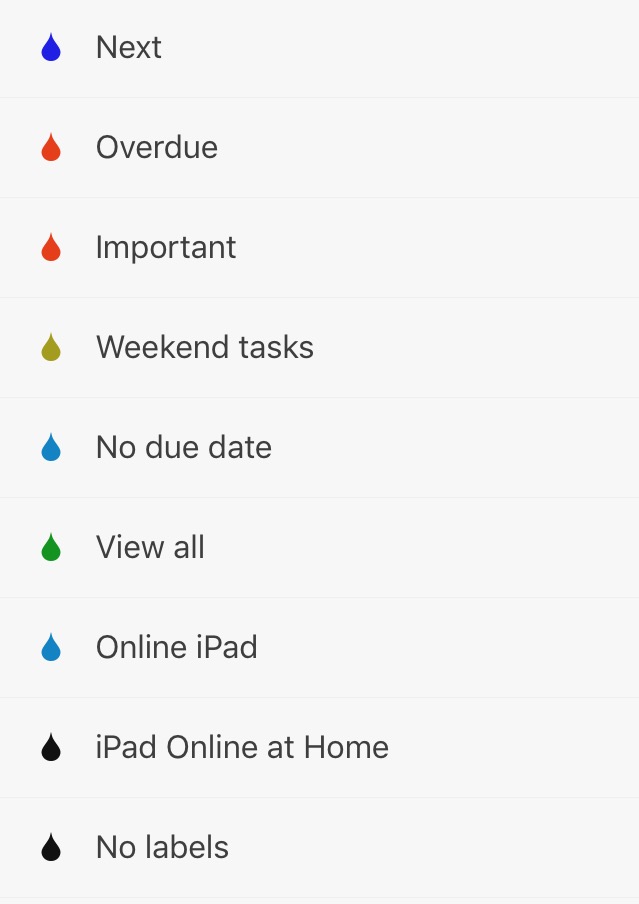
I’ve found that I have been using Todoist a lot, and I’ve also been using filters more. They allow me to break down tasks into manageable lists, and see what I can do where. You can check out what filters I use below.
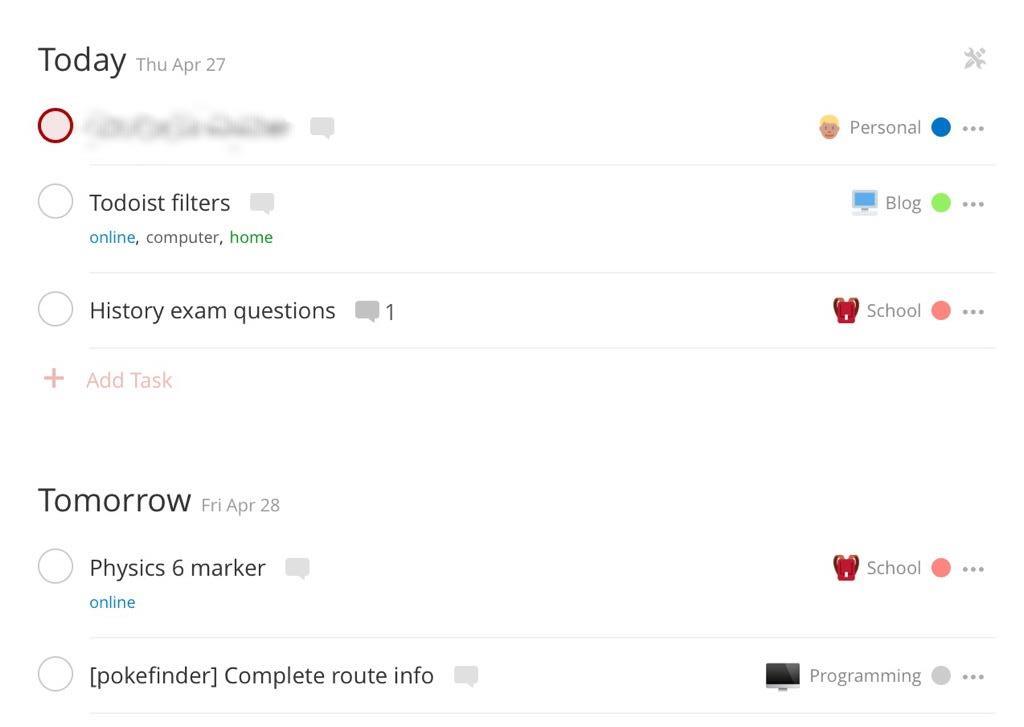
My most used filter is the ‘Next’ Filter. This filter shows me tasks that I have scheduled for the current day, and the next day. To get it, simply put today, tomorrow in the query box. Then, Todoist finds the tasks with a due date of today and tomorrow, and shows them on the screen. I find this useful as if I still have time after completing my tasks for one day, I can go and complete the tasks I have the next day.
The next filter I use is the ‘Overdue’ filter. I don’t often have overdue tasks, but if I do I like having a filter that allows me to see them all at once. To get this filter, simply put ‘over due’ into the query box.
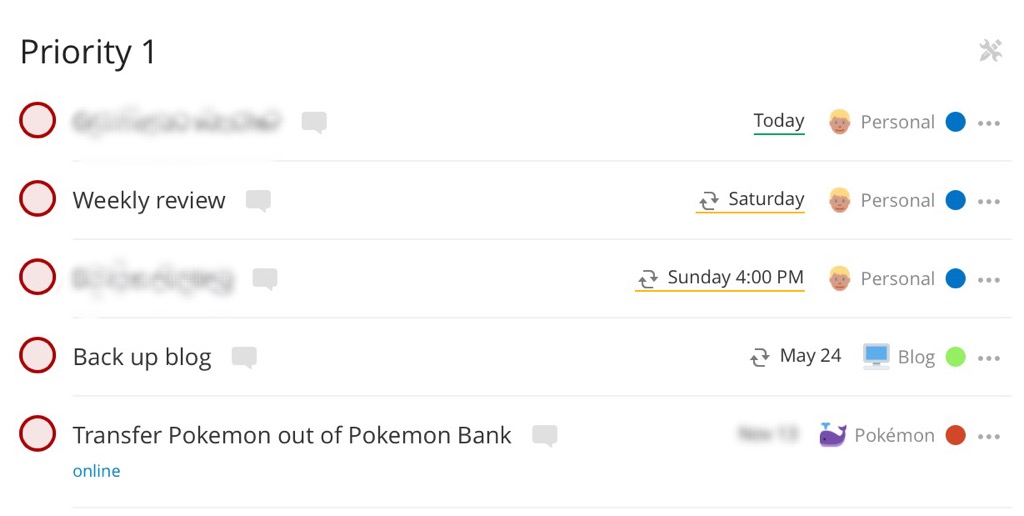
I use priority flags a lot in Todoist, and having a filter that allows me only to see tasks with the top priority flag comes in very handy. This lets me see all my crucial tasks, and it lets me know what I need to get done. Once again, it’s pretty easy to set this up – just type priority 1 into query box.
My next filter is ‘Weekend tasks’. This filter shows tasks that are due on Saturday and Sunday, and I find this useful as it allows me to clear up my weekend to do things I enjoy, and not school work. I often move tasks out of this filter into the week, so I can work on them and have a free weekend. This filter takes advantage of the date query, and I have sat, sun in the query section.
A few of the filters I have are just general ones, that show tasks with no due date, or no labels. I like this as I can see tasks that I have not scheduled, and maybe adjust their due date if needs be. I also like the ‘no labels’ filter as it lets me look over those tasks and see if I need to assign a label to them.
My final filters are one’s for my devices. I have one which is called ‘Online iPad’. This filter brings up all my tasks with the label ‘online’ and ‘ipad’, and these are tasks that I have to have my iPad online to complete. I also have one for my computer. This is pretty useful as it lets me complete those certain tasks when I am at my computer or iPad, and do them before I go offline.
Those are my filters! I hope they gave you some ideas on how to set up yours. Think of things you often refer to, and make filters for those. They come in pretty handy!
I hope you found this post useful, and thanks for reading!