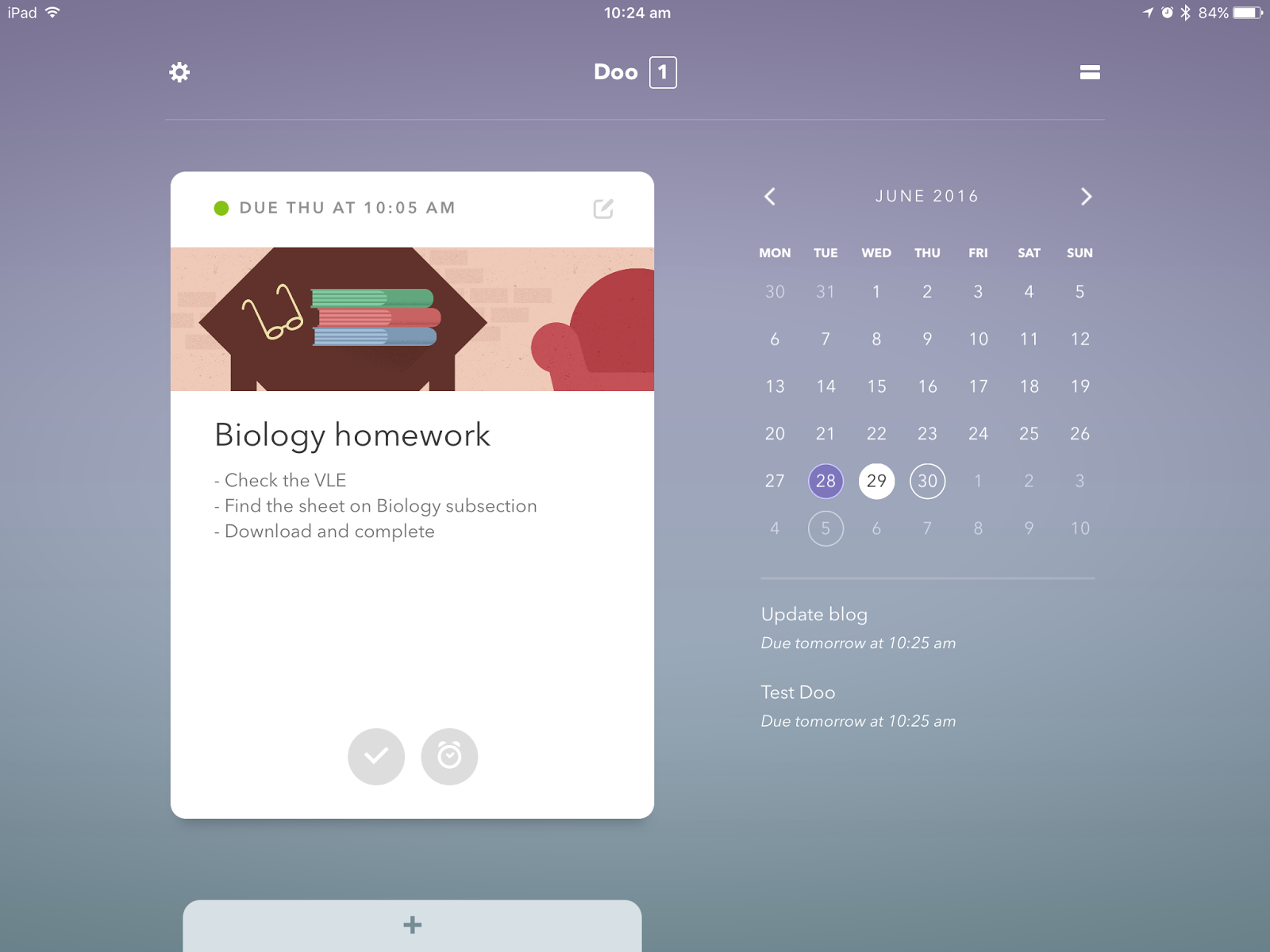
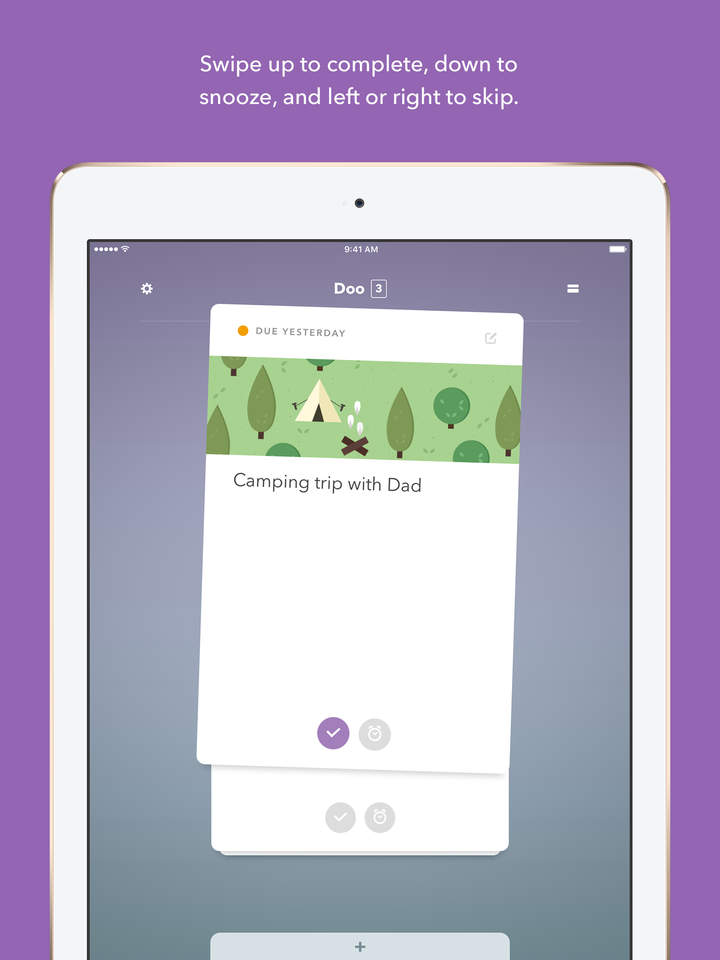
Doo is a fun and attractive todo app for iOS. It presents your tasks as a stack of cards, with a image related to the task at the top of each stack.
Doo is a todo app that makes your todos fun and interesting way of managing your todos. It gives you your tasks as a stack of cards, and has a beautiful illustration at the top of your card which really adds a sense of personality and warmth to your tasks.
It’s really easy to make a task with Doo; just tap on the plus button and type what you want. You can add notes, and you can also add a due date and repeats of the task. You can ‘schedule’ the task by tapping on remind me and selecting how many days you want to be reminded before the task. I would like to see a scrolling date picker here, which would be much more efficient for scheduling your tasks (I’ve contacted the developers about this feature and I’m hoping that they will consider adding it).
I love the way you complete tasks; you simply swipe up when you’ve completed the task. This is fun to do and efficient. You can also swipe down to snooze the task for the next day.
Doo also offers a section for notes. Doo likes you to keep your notes simple, and even gives you editing help if your notes start to become to long. This helps you keep your todos simple, and helps you not get overwhelmed with your notes.
Doo also offers a share extension and a today widget, which are great widgets. With the share extension, you can quickly add something from a website or an email. The today extension lets you quickly see your todos, and also lets you quickly add them.
Doo also offers iCloud sync, which means that you can synchronize your notes to your iPad and Mac from your iPhone, and get your tasks on all your devices.
All in all, Doo is a great and beautiful app that focuses on simplicity and just getting your things done. I love the way it doesn’t overwhelm you with its features, but those advanced features are there if you want them. I’m hoping that they will add split screen support, and that scheduling tasks will become easier. Doo is available on the App Store at £2.29.
Pokémon GO has been released in the UK for iOS and Android! You can download and play it now.
You can read a post I did earlier this year on Pokémon GO here, which gives information about some of the features. The game does require constant internet or data connection, so you will not be able to play it on devices with no data when your not connected to data. If you do play on data, make sure not to go over your data allowance. One problem I found with Pokémon GO was that it consumed a lot of battery, as it is tracking you in the background. So, make sure that you charge your phone fully!
Omnioutliner is an outlining tool for iOS, and is made by the Omni group. It allows you to create anything from simple to advanced outlines. It has features that allow you to add columns with fields such as rich text, duration, pop-up list and many more.
I am testing with an iPad Air 2, on the latest iOS with the latest version of Omnioutliner. I use a Logitech Ultrathin keyboard.
At the time that this post has been written, I have been using Omnioutliner for over a month. I started using it on the 2nd of May, in 2016. I use it to plan essays, large pieces of homework, and for planning blog posts as well as some personal things. However, even though I have been using it for a long time, I am still discovering new and powerful features everyday. At first, Omnioutliner took some time to figure out. However, once you have got the hang of it, it is very simple to use.
Omnioutliner allows you to add multiple layers of notes; think of them as bullet points on Word or another word processor, however with much more advanced features. You can hide sections that you do not want to see to clean up Omnioutliner, and you can also minimize notes. You can change the look of your outline, with highlighting and changing the colours of certain sections on your outline. Changing the text colour and highlighting the text is also possible. You can add notes to each bit of your outline, and you can also add images. Audio can be added, which allows you to record lectures, or quickly add something to your outline.
Columns can also be added, with rich text, numbers, dates, duration, pop-up lists and checkboxes. With pop-up lists, you can edit what it shows; for example, if you are keeping track of what books you are reading, you can put five items in the pop-up list. Then, edit each one with stars. Once you have read the book, tap on the row in the rating column and then select the amount of stars you want to rate it.
Split screen support has also been added to Omnioutliner, which is great as you can write up your post or essay, and also have Omnioutliner by your side, meaning that you do not need to keep changing app. Split screen support can only be used with the iPad Air 2 and later, but you can get slide over on the iPad Air and later.
All in all, Omnioutliner is the best outlining tool I have used. It is better then any other outlining tool that I have found on the App Store, and better then any outlining tool I have found on my PC. It is quick and efficient, and it helps me to plan my essays and blog posts. I would recommend that you check it out if you are interested, and it is on the App Store for £29.99 here.
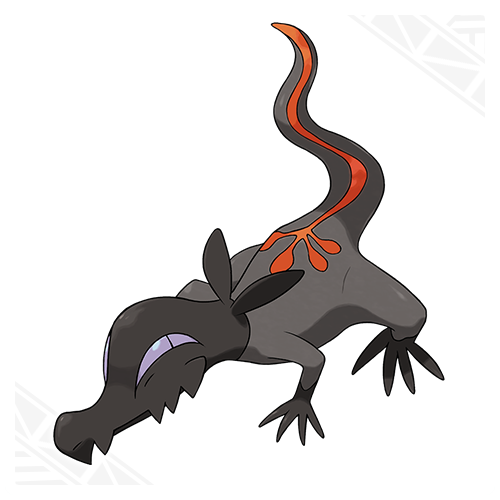
A new Pokémon has been released for Pokémon Sun and Moon!
Salandit is a poison and fire type Pokémon that is going to be released in the games.
Salandit’s ability is Corrosion, a new Ability that no other Pokémon has had before. With the Corrosion Ability, it becomes possible to inflict the Poisoned status condition even on Steel- and Poison-type Pokémon.
Salandit is a pretty cool Pokémon, and I look forward to see what other ones are released!
Evernote recently changed their pricing plans and changed some things for basic users. This post is just a quick note on the changes to the plans.
The prices for both plus and premium have increased. Plus has increased to £29.99, and premium has increased to £44.99. Free users now can only have two devices.
Personally, I am going to stay with Evernote. I am a premium user, and it only costs £3.75 a month, which is less then a cup of coffee. For me, Evernote is an amazing tool, and I have found nothing as great as it. I am happy to continue to support the efforts of Evernote.
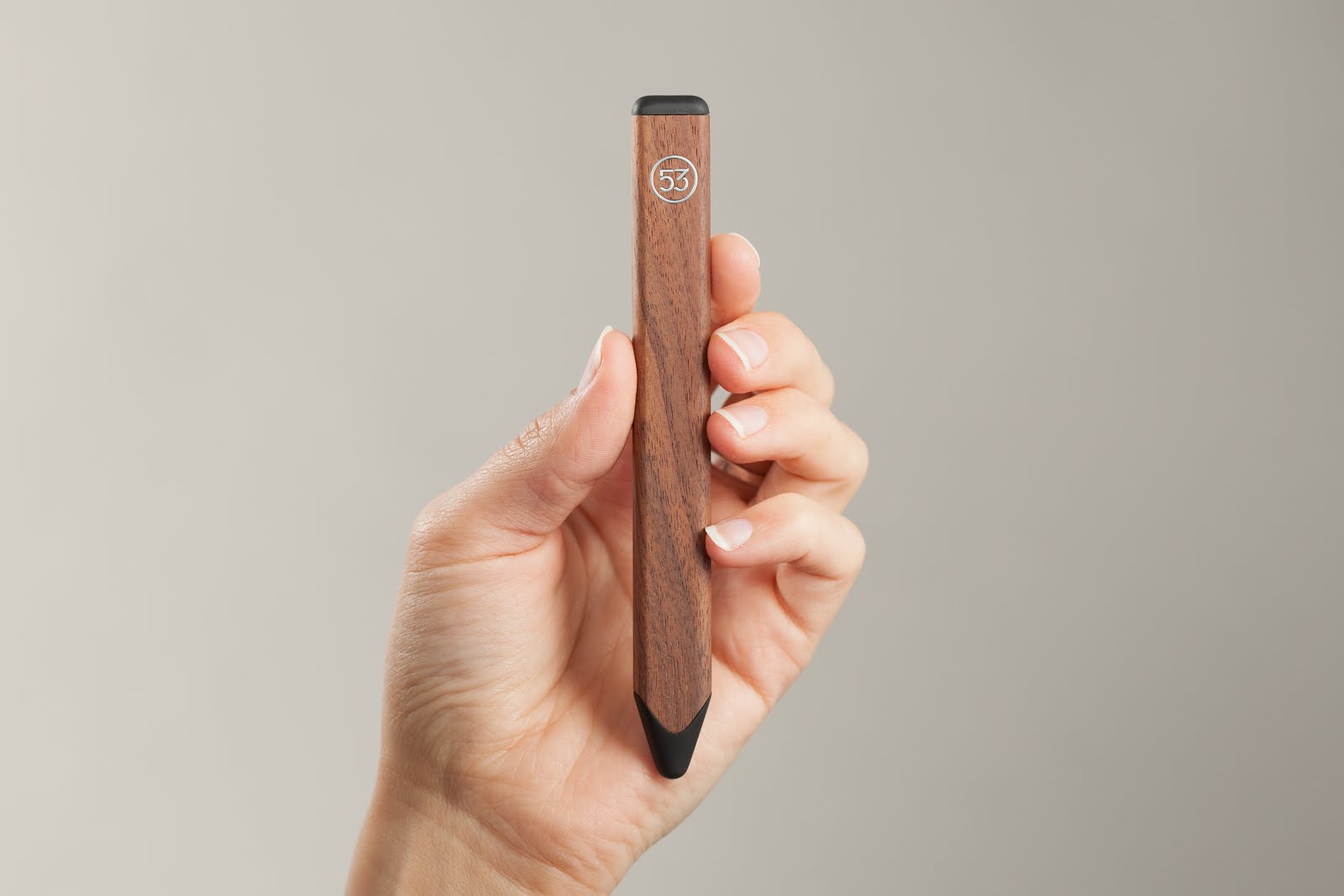
The Pencil by Fiftythree is a stylus for the iPad. It is made out of high quality wood, and has two rubber tips. These can be used to erase and draw.
The Pencil by Fiftythree is a stylus for the iPad. The version I got was the wooden version, and you can also get metal versions, gold and graphite. The Pencil has two tips. The larger one is the writing surface, and the smaller one is for erasing. If you connect the Pencil to Paper by Fiftythree, you can use your finger to blur. The Pencil also has pressure sensitivity when you connect it to Paper, but in a really cool way; when you put the Pencil on its side, the stroke gets larger. It’s like when you put a normal pencil on its side, the stroke widens. I love this, and it’s unique to this stylus. And, it also works with the rubber! If you put the rubber on its side, it will erase a smaller portion.
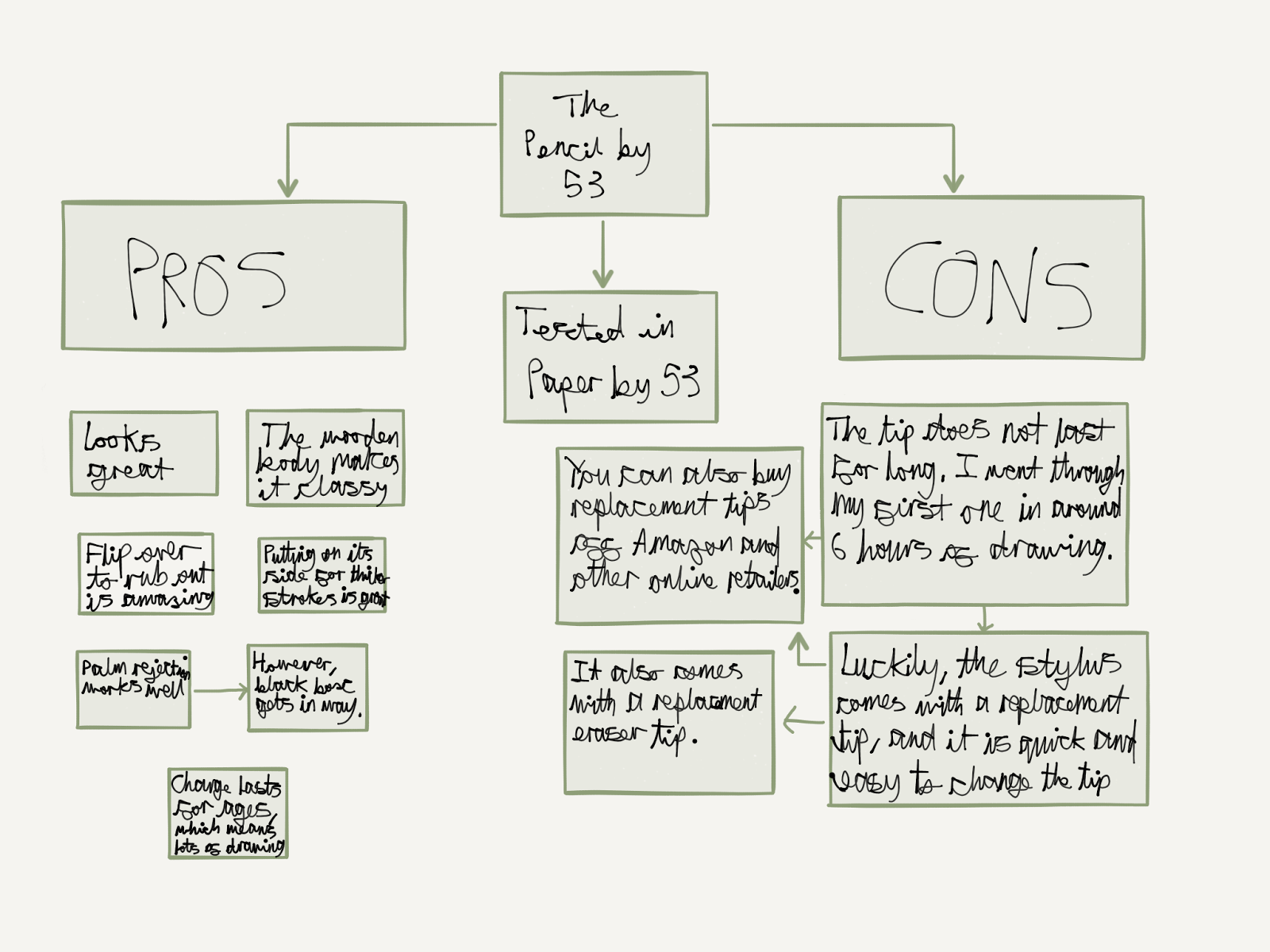
The stylus quality is great. The body is made of wood, and the tips of rubber. However, the rubber is not very durable, and after around 10 hours of using the stylus, I found that I had a hole in the tip. You can continue using the tip after this, if you just flip the Pencil over. Luckily, the Pencil comes with a spare tip for both the eraser side and the drawing side. It’s easy and simple to replace them, and you can buy replacements on Amazon or through the Paper site.
The battery life lasts for ages; I’ve been using the stylus for over a month and I have not had to charge it yet (after the first charge when you get it).
I will be using the stylus with three apps; Fiftythree’s very own Paper app, Procreate and Goodnotes. The Pencil really shines with Paper, as it’s made for the app. I have used Paper for a long time, and found that my experience was made a lot better with the Pencil. You can draw as you usually do, but I love the way you can flip over the Pencil and rub out. This works very well in Paper in my experience, but I do not often rub out, I use the undo feature. My favourite feature of the Pencil is the pressure sensitivity. I love the unique way of leaning the Pencil on the side, and how it creates a thicker line. Another feature the Pencil unlocks in Paper is the smudging feature. If you move your finger quickly over the screen to smudge, it does a slight ‘motion blur’. If you move it your finger at a normal speed, it creates a visible blur. If you move your finger very slowly, it drags the colour on the canvas.
A flowchart with the pros and cons in Paper by 53
I have had no problems with the rubber and the pressure sensitivity in Paper. They have always worked well, and I find them useful to use.
The next app I use a lot is Procreate. It’s a very advanced drawing app with tons of different brushes, and layers (which are very useful). The pen tip works great in it, and so does the rubber tip. However, when I lean the Pencil on it’s side, it doesn’t create a thicker line. This is more of a problem with the app though, not the stylus. It’s still great to draw in.
Drawing, rubbing and smudging in Procreate
If your a student, you would probably be interested in how the Pencil works for notetaking. Luckily, the Pencil works in my favourite notetaking app, Goodnotes. I love how the rubber feature still works, and that you can still flip to erase. You can still put the stylus sideways, however the line is only a tiny bit thicker. The Pencil does have a blunt tip, which sometimes blocks out the line. However, whilst I find this does not affect with drawing, it can affect you when you are doing maths equations or writing an essay. The biggest problem I found with it for note taking is that there is quite a lot of drag on the stylus tip. Whilst it’s great for drawing, the drag is a little to much (at least for me) to write with. It also means that the tip wears away really quickly too. However, you could still use it for writing (I would recommend it for drawing though, not notetaking).
Goodnotes
All in all, the Pencil by Fiftythree is a great stylus. I love the pressure sensitivity feature, and the unique way that the stylus does it. The eraser feature also comes in very handy, and I love the way that pressure sensitivity is also available for the eraser. The styluses body is very well made, and feels very luxurious. I would say that the only thing that lets the stylus down is the tips. They wear out very quickly, meaning that you have to replace them every two months or so (I used my stylus for around two hours a day for a month, and it had one hole in the tip. I just flipped it over and kept using it though).
The Pencil is a great stylus; you can buy it off the Fiftythree site here.
Pokemon Sun and Moon is coming out soon (well, in late November), and in this post I outline what features I hope will be in it.
Pokewalker
I loved the Pokewalker, and so did so many other people. I would love it if I could dump my Pokemon onto the Pokewalker and go for a stroll to level them up. I still use my Pokewalker, but not often as all of my Pokemon are in the newest game.
Having your Pokemon walk behind you
I loved this feature in Pokemon Soulsilver. It made you feel as if you were close to your Pokemon, and I just found that it made the game more fun. I loved the way the Pokemon found items, and that you could talk to them and that they interact with their surroundings.
Customisable clothing for your character
Having customisable clothing in X&Y made the game a whole lot better. It made your character a lot more personal, and it also made the game a lot more fun as you could waste all your money after you had beaten the elite four on clothing.
Two regions
I almost had a heart attack out of joy when it was announced that Pokemon Heartgold and Soulsilver would have two regions; Johto and Kanto. It was brilliant that after you had completed the game that you could go to the other region and basically have another game. It was sort of a two in one, and it added so much more to do.
Having the underground game section
Exploring the underground with the exploration kit in Diamond and Pearl added hours of fun to the game. I used to spend hours exploring it, and it really added another thing to do in the game after you had completed the story. It was really fun to play with your friends and find crystals, and I would love it if this was added in Pokemon Sun and Moon.
Delta episode
The Delta episode in Pokemon ORAS added some more game play after the story line had ended. However, it was really short and left me wanting more. I’m hoping that there will be a equivalent of the Delta episode in Pokemon Sun and Moon.
You may have noticed that most of the things I want in Pokemon Sun and Moon come from Pokemon Soulsilver. This is because it is defiantly my favorite game in the Pokemon series, and I’ve played them all (from Pokemon Red to Pokemon ORAS). I loved the amount of effort Pokemon put into it, and it really paid of. The Pokewalker was a highlight feature, and actually encouraged people to go out and walk. I loved it.
I really hope some (or all) of these features are included in Pokemon Sun and Moon, and that will really make the game stand out for me.
Thanks for reading!
What features would you like to see in the new games? Feel free to comment below!
Procreate is an advanced drawing app for the iPad, with many features such as layers and multiple colours.
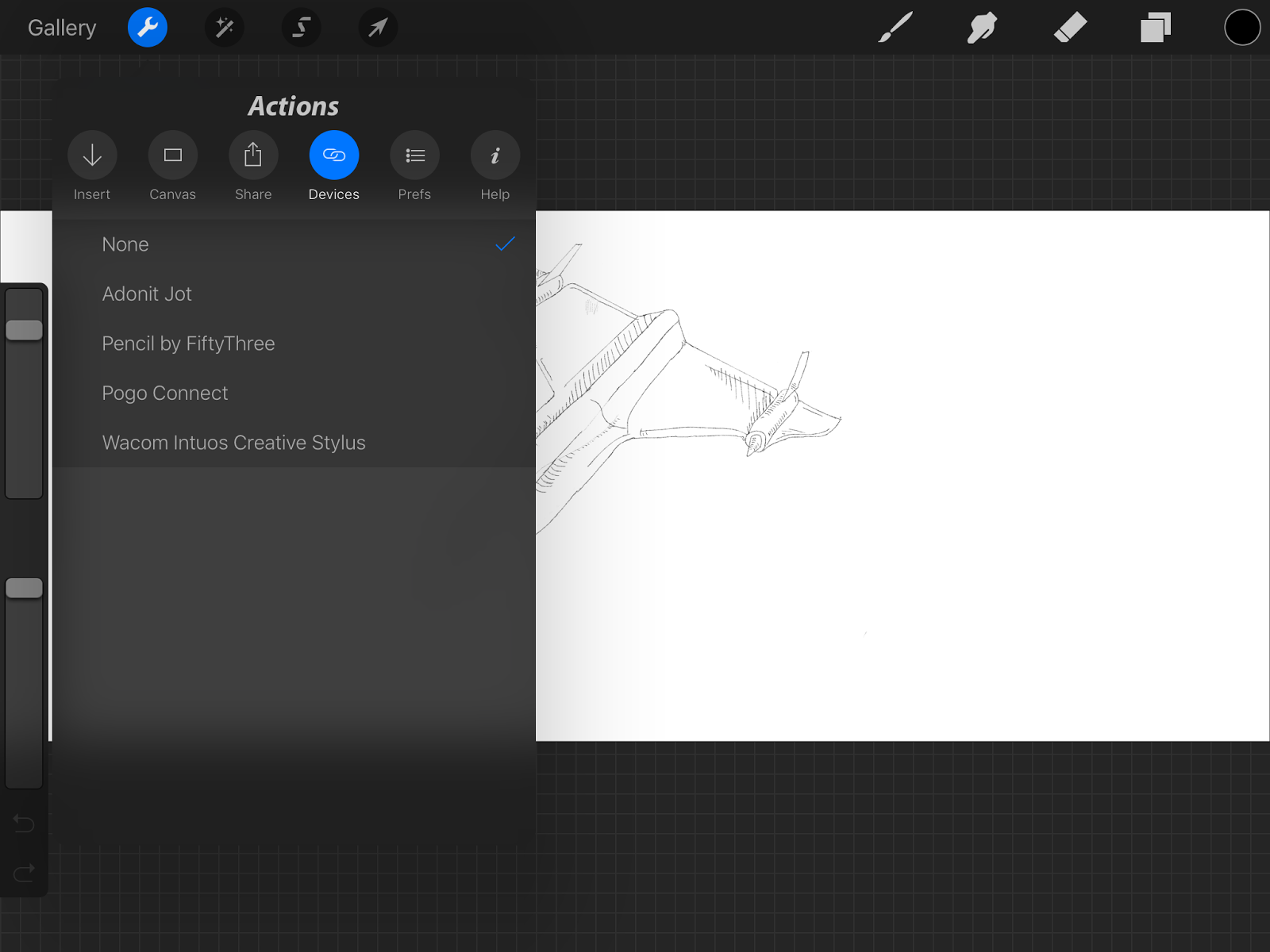
Procreate is a drawing app for iOS. It has loads of features, such as different canvas sizes and tons of different brushes. It connects with 5 different bluetooth styluses, including Adonit Jot, Pencil by Fiftythree and the Apple Pencil. Of course, it also works with your standard rubber tip and carbon tip styluses, such as the Wacom Bamboo Solo 3.
Styluses compatible with Procreate
Procreate has a very simple layout; when you are drawing, there is not much to distract you. All the icons are simple and in a toolbar (which can be hidden) and the sliders on the left to change the size and opacity of the brush are extremely useful, as they are easy to use and you don’t need to navigate loads of menus.
Procreate’s ‘gallery’ screen is where you can see all your drawings. It’s very clean with no menus, and I like that a lot. When you swipe left on a drawing, you get the options to delete, duplicate or share.
Procreate offers a lot of preset canvas sizes, and also allows you to make your own custom size canvas. There is a limit to the size canvas you can make, and you can see them below:
iPad Pro 12.9″ – 16384 x 4096, or 8192 x 8192
iPad Pro 9.7″, iPad Air 2, iPad mini 4 – 8192 x 4096
iPad Air 1, iPad 4, iPad 3, iPad mini 3, iPad mini 2 – 4096 x 4096
iPad 2, iPad mini 1 – 4096 x 2616
Procreate has over 120 different brushes, for pencils to watercolours. For each brush, there are even more settings. You can edit the following things below:
Stroke
Shape
Grain
Dynamics
Pencil (the pressure setting apply to any pressure sensitive stylus, whilst the tilt setting only applies for the Apple Pencil)
General
Source (you can edit the source of the shape and the grain source
In each of the brush settings, there are sliders that let you edit your brushes jitter, opacity and so much more. You can make the brush do anything you want, and also make custom brushes using source. There are 35 customisable settings for every brush
Moving the canvas is also easy with Procreate. You can zoom in and change the angle of the canvas, which is extremely useful, especially when you are doing details.
Another feature which is great is that you can watch how you made your art as Procreate records your strokes, and then you can re-watch them. It’s pretty cool to see how you art came to life, and you can You can see an example below:
Procreate also gives you effects, such as perspective blur, and Procreate is the only drawing tool with perspective blur available for iPad. It also gives you Gaussian and motion blurs, which can really make your drawing come to life. You can change the colour balance, and also see image curves.
Procreate also allows you to export your drawings as many different file types, and you can also save them as .psd files.
All in all, Procreate is the best drawing app I have used on the App Store. Procreate is available on the App Store at £4.49, and I would really recommend that you check it out.