Advertisement
Home Blog Page 23

Code On Your iPad and iPhone with Textastic and Working Copy

The iPad is a great tool for productivity, from writing up essays to coding. If you use GitHub or BitBucket, you’ll know that it can be hard to edit your repositories on your iPhone or iPad. However, Working Copy and Textastic may be the solution for you.

Repositories in Working Copy

Working Copy is an app for iOS that is basically GitHub desktop; it allows you to clone your repositories, commit and lush to them, resolve issues and lots more. You can also edit files directly in Working Copy. It’s a really great app, and I recommend that you get it. Working Copy is available on the App Store at £10.99. There is also the free version, however pushing is locked unless you make an in-app purchase. (I’m planning to do a post on Working Copy, so keep your eyes out for it).

The second app is Textastic. You can read my earlier post on it here. Whilst it’s not vital, it certainly is useful. Working Copy allows you to open your repositories in Textastic, as if they were files from Dropbox or some other cloud storage. This means that you can edit your files in Textastic, and then simply switch app and commit them to your branch.

If you are making a project at school, or just making an app with friends or colleagues, it’s almost certain you’ll be using GitHub or BitBucket. Keep coding wherever you are with Textastic and Working Copy.

Thanks for reading!

Feel free to comment below!

Item in the Spotlight: XP Share!

The XP share is a great time that allows you to spread the XP your Pokémon earn a cross your team, and therefore leaving up all your Pokémon, and keeping them at a high level.

 In the newer games, the XP share spreads across the team and devices the XP across the team, whilst in the older games it only applied it to Pokémon holding it.

 The XP share is one of the best items in my opinion as it can be used to keep the levels in the tea, the same, and this means Pokémon become stronger quicker.  

Thanks for reading, and sorry it is a short post today!

Feel free to comment below!

LongScreen: Combine Screenshots

Longscreen is a great app that allows you to combine screenshots vertically or side-by-side, and can come in very useful when you want to share something that’s very long, or when you want to put similar screenshots side-by-side.


LongScreen is a really great app that allows you to merge and combine screenshots into one great thing, making it really easy to share with your friends. It stitches the images together, and makes it very smooth. You may have seen me use it in some of my other blog posts.

LongScreen also allows you to put your screenshots side by side, therefore making it easier to share them, and also allows you to put related screenshots near each other.

All in all, LongScreen is a great app for people who want to share a lot of screenshots and combine them, or share something that is very long. I recommend that you check it out on the App Store here.

Thanks for reading!

Feel free to comment below!

Cardflow+: Beyond Index Cards

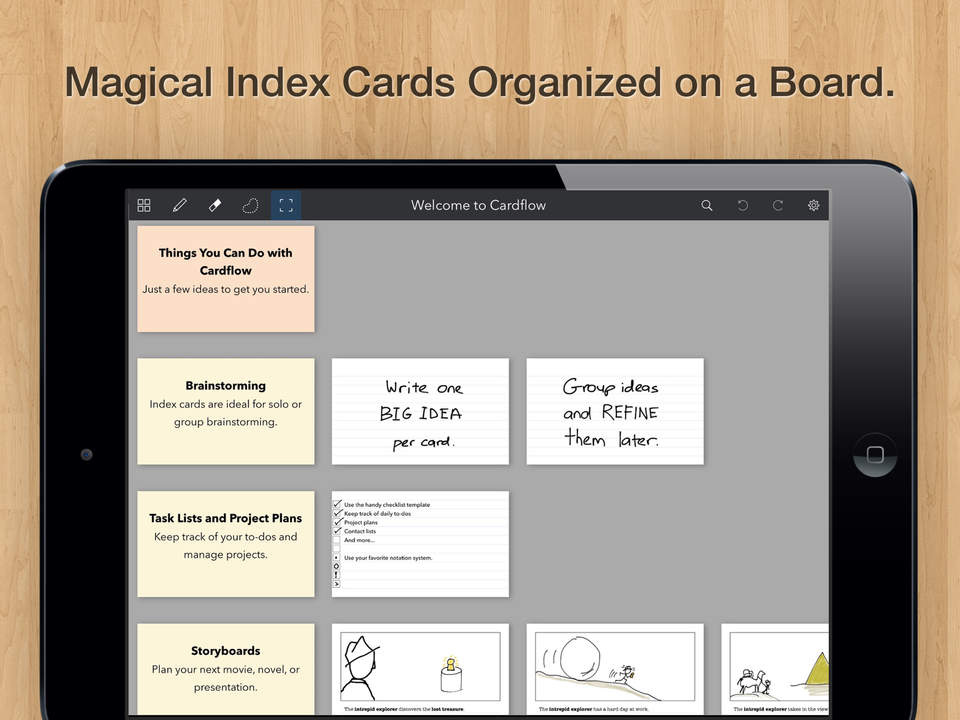
Cardflow is an app for iPad which allows you to make boards and then put flashcards on. It’s great for managing projects, brainstorming, making quote banks and a lot more.


Cardflow+ is a great app that allows you to make flashcards on boards. You can draw and write on the cards, and Cardflow also supports the Apple Pencil. You can also draw and write on the back of the board, meaning that you can separate your cards and other things like that.

Making a card is easy. Simply double tap on the background and the card pops up. You can draw on the card, and you can also insert text. Images can also be inserted. There are three drawing tools; one which has shapes – this automatically gives you a straight line or the shape you drew – one which has a white dot behind a grey dot, and this is draw behind, and one which has a white dot in front of a grey dot, which is just the normal draw in front. The draw behind is a great tool for colouring in, as it means that you do not cover your lines.

I like the way you can have a mixture of text and handwriting in Cardflow. It means that you can really add what you want to the card without the limitations of either text or handwriting.
Cards are also customisable – you can change the template, for example from lines to squares, and you can also change the colour of the card. This helps cards to stand out, and also makes your board a little more lively.

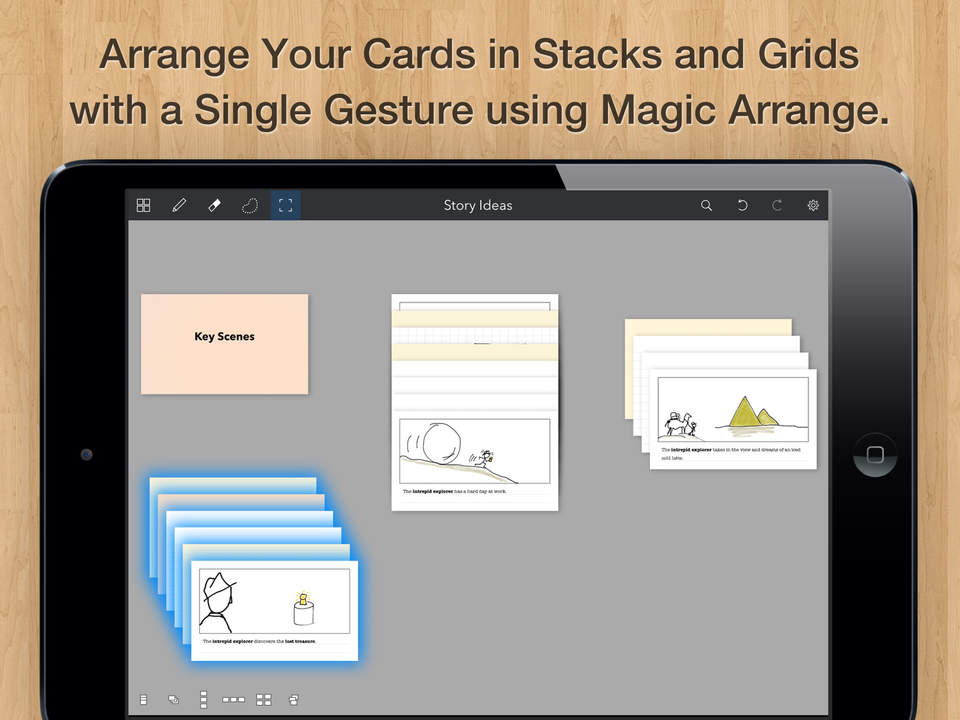
Another great feature is the magic arrange feature. You select the cards, and then you can select how you want them to be organised. You can arrange them vertically or horizontally, as well as shuffling them and many more other arrangements.

Linking cards is also possible with Cardflow, and this means that you can link related cards together. This is useful when revising, as you can see related topics. You can also link cards with exported PDFs, which is a very nice feature.

Cardflow also offers split screen and external keyboard shortcuts, which helps to make cards quicker, and means that your hands don’t have to leave the keyboard to sort out your cards and navigate the board.

All in all, Cardflow+ is a very powerful and helpful app. The welcome board gives you ideas of what to do with it, such as brainstorming and flash cards, but there are so many more ways that you can use the app. Cardflow+ is available on the App Store at £7.99.

Thanks for reading!

Feel free to comment below!
No Pokèmon posts on the 10th and 17th of August

Just a quick note that there will not be any Pokèmon posts on the 10th and 17th. I’m away, and I didn’t manage to write them in time!

Saturday posts will continue as normal.

Thanks and sorry!

Make School Notes Quicker with Workflow and Drafts 4

I recently started using my iPad as my primary device for taking notes at school. It was lighter then my PC, and I could also use my Jot Script to hand write on it. I recently adapted a workflow for taking notes that I want to share with you, and this workflow allows me to tag and add a notebook to an Evernote notebook all automatically, along with assigning a title and date to the note, and saves a few minutes of every lesson.


The main apps in my workflow are:

Step 1 – Setting up the calendar

The first step is setting up your schedule in your calendar. Make sure you get the times right, and use repeating events. I advise you make a separate calendar for your school timetable with a different colour then your normal or private events.

Step 2 – Setting up the Workflow

This is the hardest step. Feel free to use my workflow which can be found here. Make sure you edit each ‘If’ field for your subject, and edit the tag and notebook variable for the tags and notebook you want your note to be assigned in. Make sure that the Upcoming event field is set for the correct calendar.

When you want to run the workflow, just drag down from the top of your iPad or iPhone and tap on ‘Lesson Title’. The workflow will run, and Drafts 4 will open with your lesson name and date in the 1st line, the notebook it will go in in the 2nd line, and the tags in the 3rd line. Start writing up your note on the fifth line, which is the start of the body of the note.

Step 3 – Drafts 4 actions

Once you have written up your note, you need to get it to Evernote. You can find the Drafts 4 action here. This action makes the first line of your draft the note title, the second line is what notebook the note will go in, and the 3rd will be the tags assigned to the note. The body of the note will start on the 5th. Feel free to use markdown, the action will support that.

So this workflow does the following things – automatically assign a title and a date to the note, and tag and give it a notebook according to your current lesson. This workflow saves you from having to switch to Evernote and manually tag and assign a notebook, which may take up time.

Thanks for reading, and if you have any questions feel free to email me at thenerdystudent@gmail.com, comment on this post or tweet me @GiacomoLaw!
______________________________________________

A small edit, I recently published it on the Workflow directory, so you can find it here. Remember, this still requires the Drafts action.

Feel free to comment below!

Pokémon Item in the Spotlight: Amulet Coin!

The amulet coin is a very useful item that can earn you more money, and therefore buy you more items.

The amulet coin is a very useful item that doubles the prize money if the Pokémon that is holding it takes part in the battle. This is useful as it means that you will have more money to buy Pokéballs and potions, and therefore mean that you are more prepared for the Pokémon League.

All in all, the amulet coin is a very powerful item that will improve your game.

Thanks for reading!

Feel free to comment below!
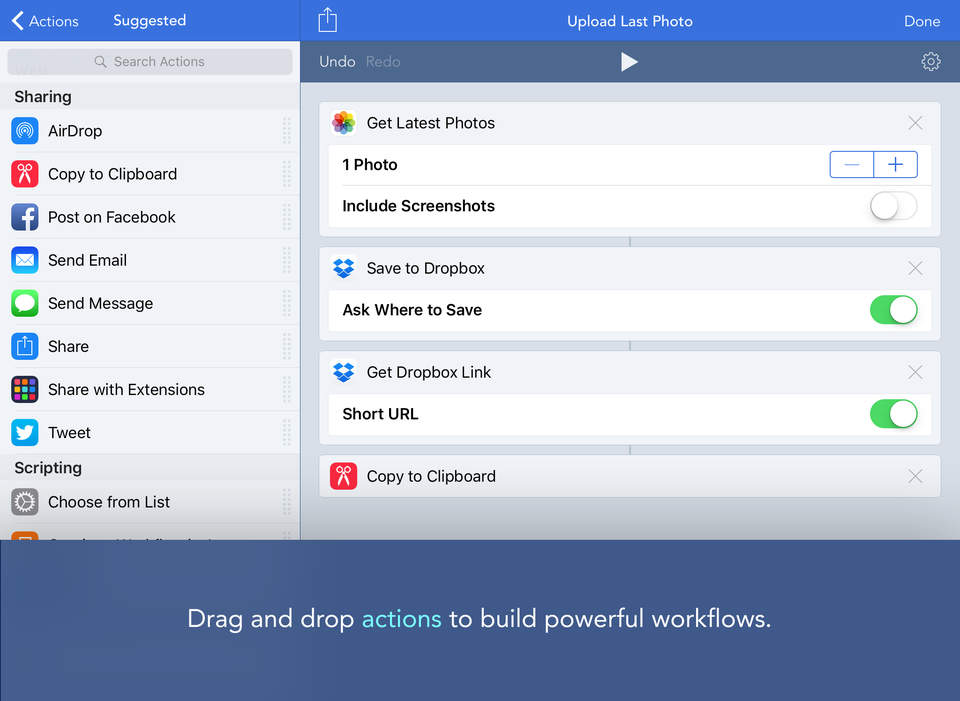
Workflow: Powerful Automation Made Simple

Workflow is a very powerful app for iOS that allows you to connect actions together to automate things on your iPad or iPhone.

Workflow is probably in my top 5 apps that I have. It allows me to build workflows that automate things that I do on my iPad that I would not normally be able to do easily. For example, one of my workflows automatically gets me my lesson title and tags from the current lesson I am in using the calendar (a post on this is coming out soon!), or to make a gif from my recent photos.

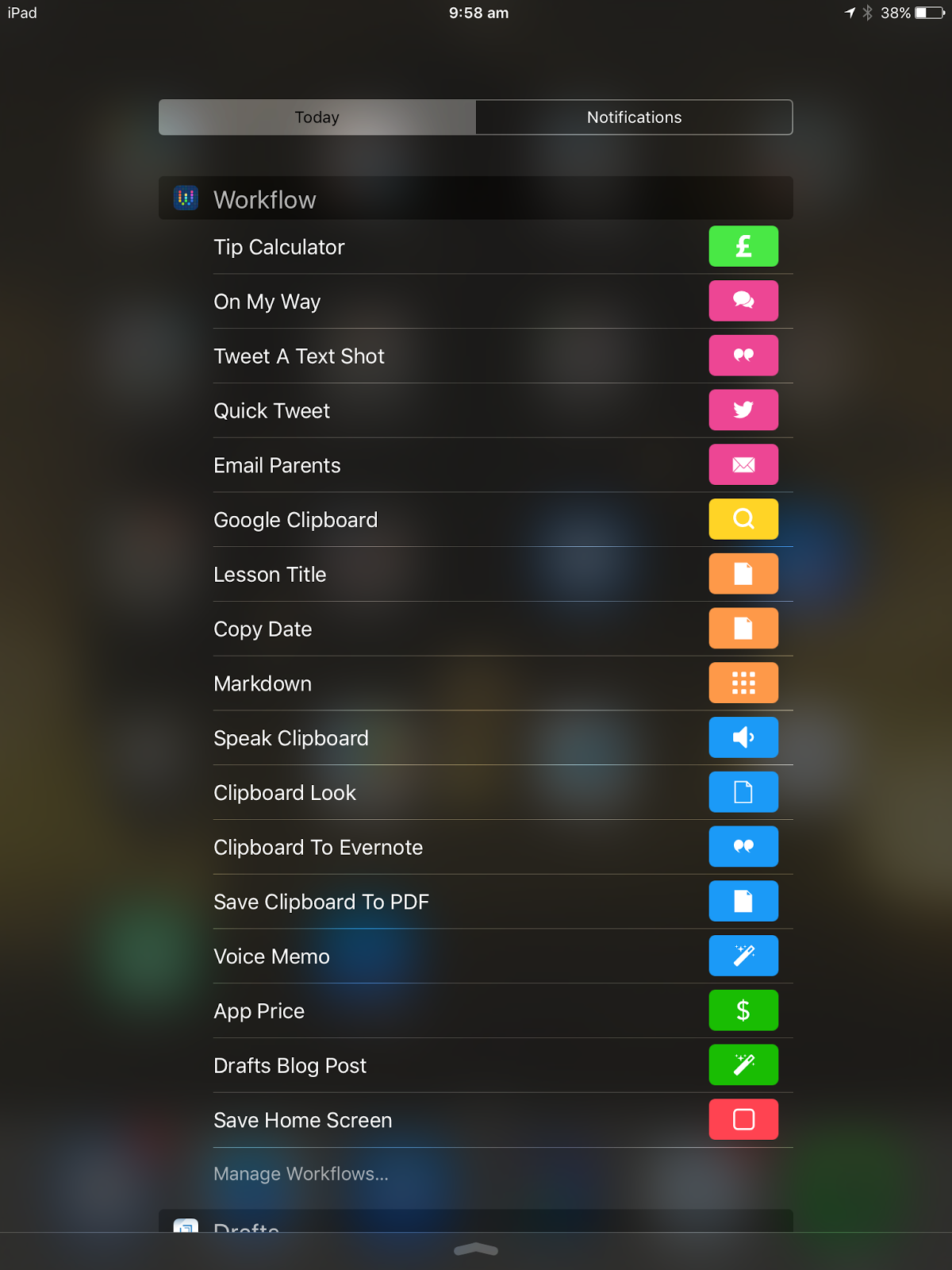
Some of my Workflows

Workflow supports loads of actions, from external apps to the Photos app. You can plug in Music and Maps, and really make your workflows yours. If your out of ideas, there are the featured workflows on app, and there are a few Workflow directories on the Internet, which can help you to understand the app better.

You don’t need need any coding knowledge to use Workflow. Everything is done in a drag and drop interface which makes creating workflows both easy and fun. There are also advanced options such as scripting with x-callback URLs and lots more. Workflow also integrates with tons of apps such as Dropbox, the App Store, Drafts, Evernote and many more.

A great feature of Workflow is that you can add Workflows to the today extension in the notification centre, meaning that you can access workflows such as ‘Save last photo to Dropbox’ and ‘Speak clipboard’. This really helps to cut down on the time it takes to access those workflows.

Workflow’s in the today widget

You can also set workflows as sharing extensions, meaning that they can be accessed from the sharing button. An example of a share extension workflow would be the ‘View source’ workflow. It basically allows you to view the source code of the website and the uses a x-callback URL to save it to Textastic. To use the workflow, you set it as a share extension, and then open safari or the other app you want to use. Navigate to the page you want, tap on the share extension and then tap the workflow you want to run.

All in all, Workflow is a great app that allows you to make powerful and customised programs that really let you use your iPad or iPhone to its full potential, and saves you a lot of time. Workflow is available on the App Store for free (at time of writing was £2.99).

Thanks for reading!

Feel free to comment below!
Evernote Premium is 75% off for students!

Evernote have just announced that for a limited time Evernote Premium is 75% off for students.

College students, save 75% off Evernote Premium

Evernote just announced that they are offering a special offer for basic Evernote users who are students. It’s 75% off Evernote Premium for current basic users, but you need to verify it with your school email.

I really recommend Evernote to all students. I use it at school, and it really helps (you can check out my post on it here).

You can read the post on the Evernote Blog here.

Thanks for reading, and I really recommend Evernote!

Feel free to comment below!

Newly Discovered Pokémon in Sun and Moon

New Pokémon have been released in Sun and Moon. You can check them out in the video below.

Thanks for reading (/watching)!

Feel free to comment below!
Advertisement