Archeops is a Rock and Flying type Pokémon, and can be found in Generation V games and later.
Archeops is a great Pokémon, especially as it is both Rock and Flying type. Its only disadvantage is its ability; Defeatist. This halves the users Attack and Special Attack if its HP drops below 50%.
Minimum stats are calculated with 0 EVs, IVs of 0, and a hindering nature, if applicable.
Maximum stats are calculated with 252 EVs, IVs of 31, and a helpful nature, if applicable.
Archeops has great stats, and is a great Pokémon in its tier.
– Suggested moveset
Acrobatics
Earthquake
Hidden Power (Grass)
Roost
Acrobatics is a great Flying attacking move. Earthquake is a good choice and Archeops is both Ground and Flying. Hidden Power, which would be Grass type, takes out Ground, Rock and Water Pokémon. Roost allows Archeops to recover HP.
Archeops is a great Pokémon, but is let down by its ability.
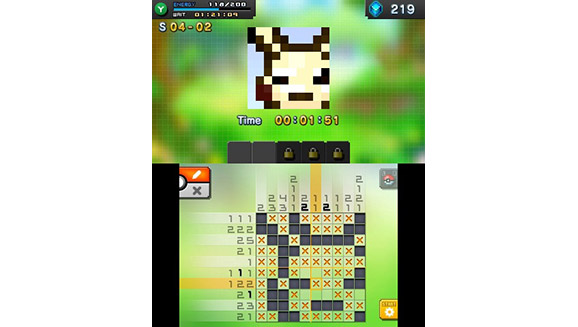
A new Pokémon game has just been released! Pokémon Picross!
Pokémon Picross has over 300 puzzles, and also has an advanced mode. The aim is to turn puzzles into portraits, and if you complete it, you get the Pokémon added to your collection.
To solve a puzzle, look at the hint numbers above each column and next to each row. They will identify the number of squares that will be filled in on that row. Decide where those squares are, and fill them in. This will reveal the Pokémon portrait.
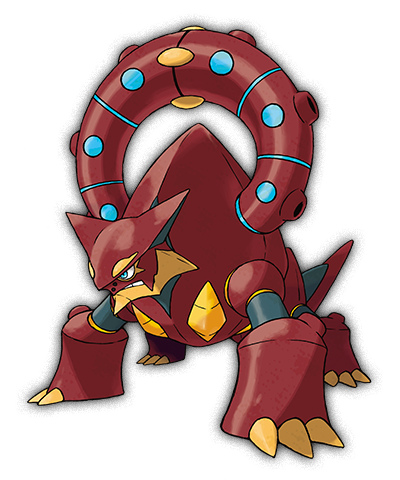
A new Pokémon has appeared in Pokémon Omega Ruby and Alpha Sapphire!
This Pokémon has one amazing feature: it is both a Water and a Fire type Pokémon. This means that it may have the edge over many Pokémon which you may encounter during your travels. It’s quite a big Pokémon, and is also a legendary Pokémon, so you might want to watch out for special events giving it away!
You can find out what the Official Pokémon website says about it here.
I recently received three socks from IFTTT. They are really cool, and I would like to say thanks for sending them! They come in three colours; white, white with orange triangles, and blue.
The socks are really comfortable, and they look amazing. They all have the IFTTT logo on the top, which will show everyone that you are a big IFTTT fan!
Finneon is a Water type basic Pokémon. The Finneon I am checking out today is from XY—Phantom Forces, #18/119, and is common.
This Finneon is not great. It only has one move and 50 HP, but that’s normal for a basic Pokémon. Finneon is weak to Grass type moves, which do double damage.
Moves
Finneon only does one move, Pound. This does 10 damage, and requires one Water type card. And that’s all it’s moves!
All in all, this Finneon is not the best Finneon card. I would suggest that you try to get a different one, as they have better moves. The only reason I would use this card is to evolve it into Lumineon, but I certainly would not use it in a competitive deck.
Trello is a great tool which allows you to organise your things visually and easily. It’s great for managing things from parties to essays. In this post, I will be showing how I use Trello to write my essays, and to manage my projects.
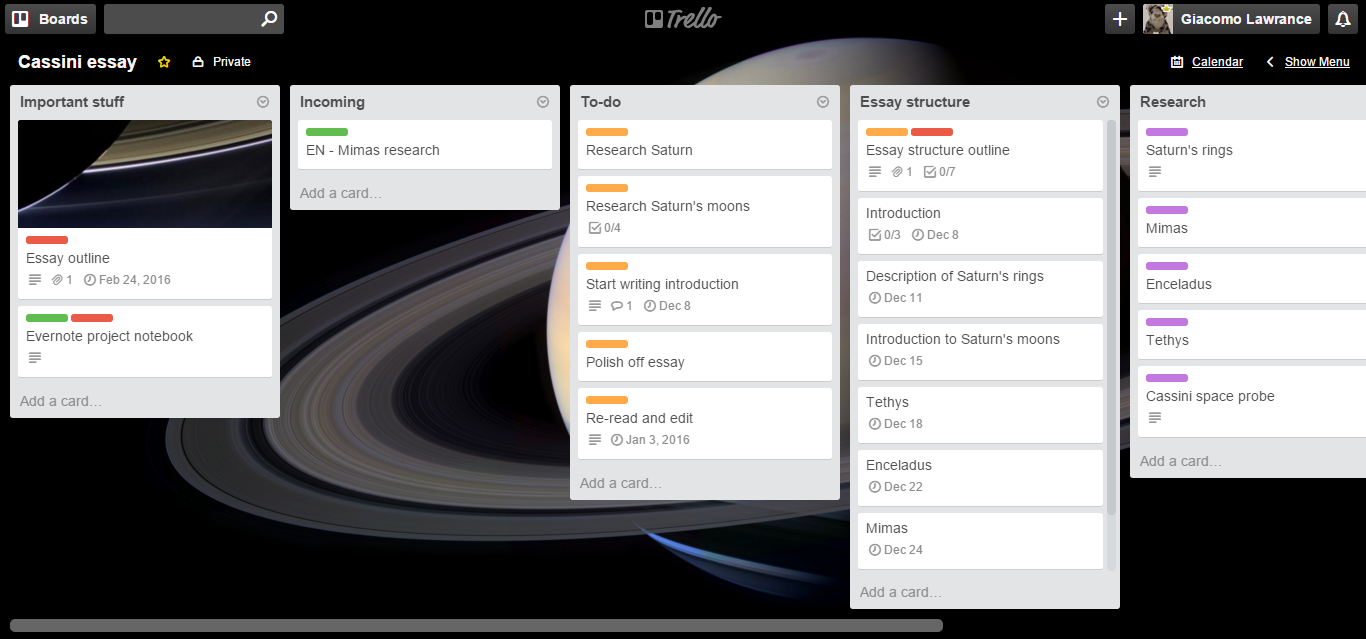
My essay board (click to enlarge)
Trello is a great visual tool. I have a blog post outlining it here. I use it for the things I need to do in games to writing essays.
In this post, I will show you how I use Trello to help me write essays. You can find the board template I use here.
Firstly, I will outline my tags. The red tag is called ‘important stuff’. I tag all the really important cards with this. The green tag is my ‘from evernote’ tag. I tag all the cards which have automatically come from Evernote with this. I use IFTTT to automate this. The orange tag is ‘todo’. I tag all the todo cards with this. My final tag is the purple tag, and this is titled ‘research’. All my research cards get this tag.
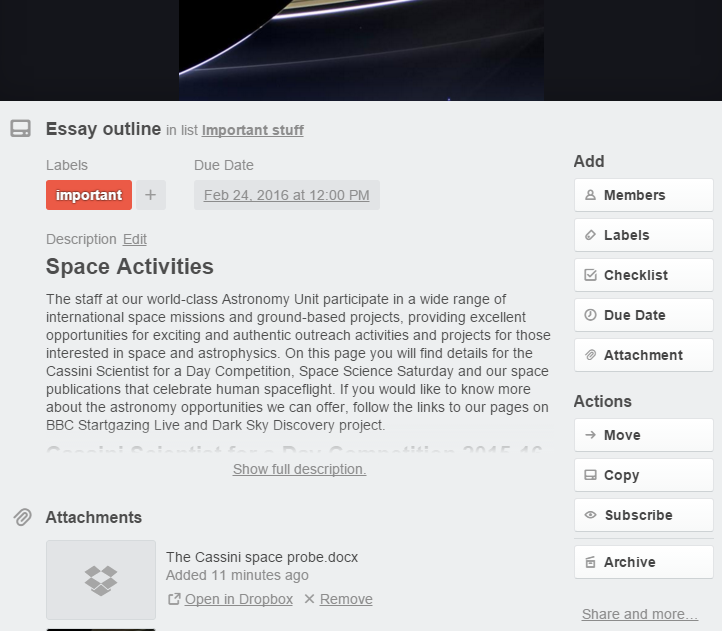
The first list I have is the ‘Important stuff’ list. This is the first list I have, and the first card on it is the project outline (what I need to do). I have put the due date of the essay on this card, as well as a picture and the essay document, which I have put on Dropbox. I then have a card with a link to my Evernote project notebook, so I can quickly switch between the two.
The essay outline card. You can see the document attached to the bottom of the card.
My second list is the ‘Incoming’ list. This is the list my IFTTT automated cards go to, and where I dump cards which I will sort later.
The third list is the ‘To-do’ list. This list is pretty self-explanatory. I put my tasks here. They often have checklists inside them. I love using the comments bit to attach links to other cards, so I can quickly jump back and forth between them.
One of my to-do cards
The next list is one of my most important; it’s called ‘Essay structure’. Each section or paragraph of the essay gets its own card. On that card is a description of what I need to do, along with a checklist of what I want to include in that paragraph. I find this really helps me get all the things I want into that paragraph. Each card has a deadline on it too, and this is when I want to finish writing that paragraph. At the top of the list is the paragraph structure of the essay, with the document attached to it.
My next list is the ‘Research’ list. Cards here have research on them, and they often have links to Evernote notes.
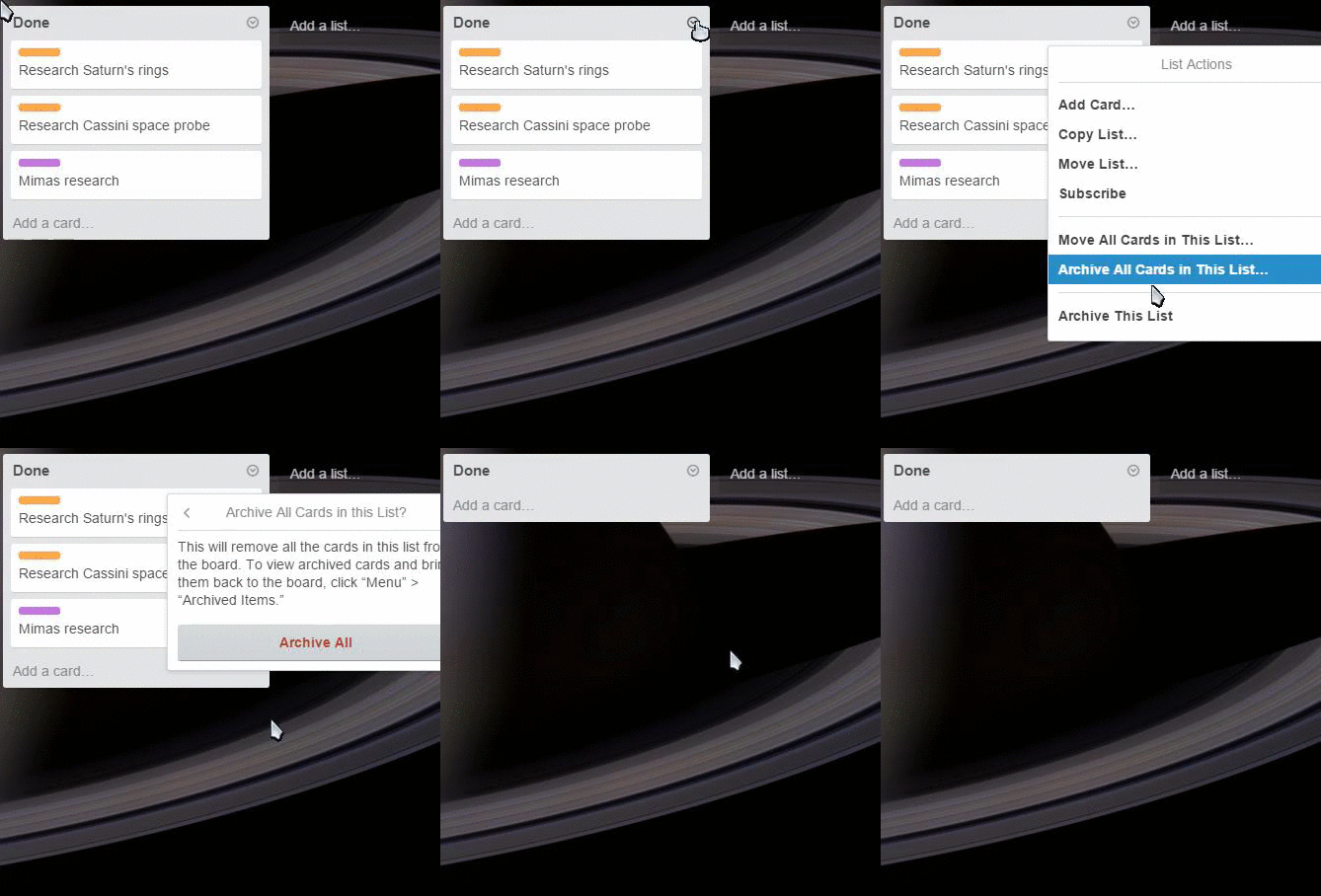
The final list is the ‘Done’ list. On this list, all the cards I don’t need anymore, or tasks that I’ve completed go. On a weekly basis I archive all the cards on it.
Archiving all the cards on the list
So that’s how I organise writing my essays and projects.
Once again, you can get my template board here. You can get a Trello account here, or you can read a Trello overview post here.
I hoped you enjoyed this post, and thanks for reading!
The Shell Bell is a healing item. It pretty useful to have.
Whenever the Pokémon holding it deals damage, it restores 1/8 of the damage dealt as HP. This means that it’s quite good for Pokémon which do a lot of damage. I would not recommend using it if you have Leftovers, because Leftovers heal you even if you don’t do damage.
As usual for the Pokémon Item in the Spotlight, this is quite a short post! Next’s weeks one will be longer!
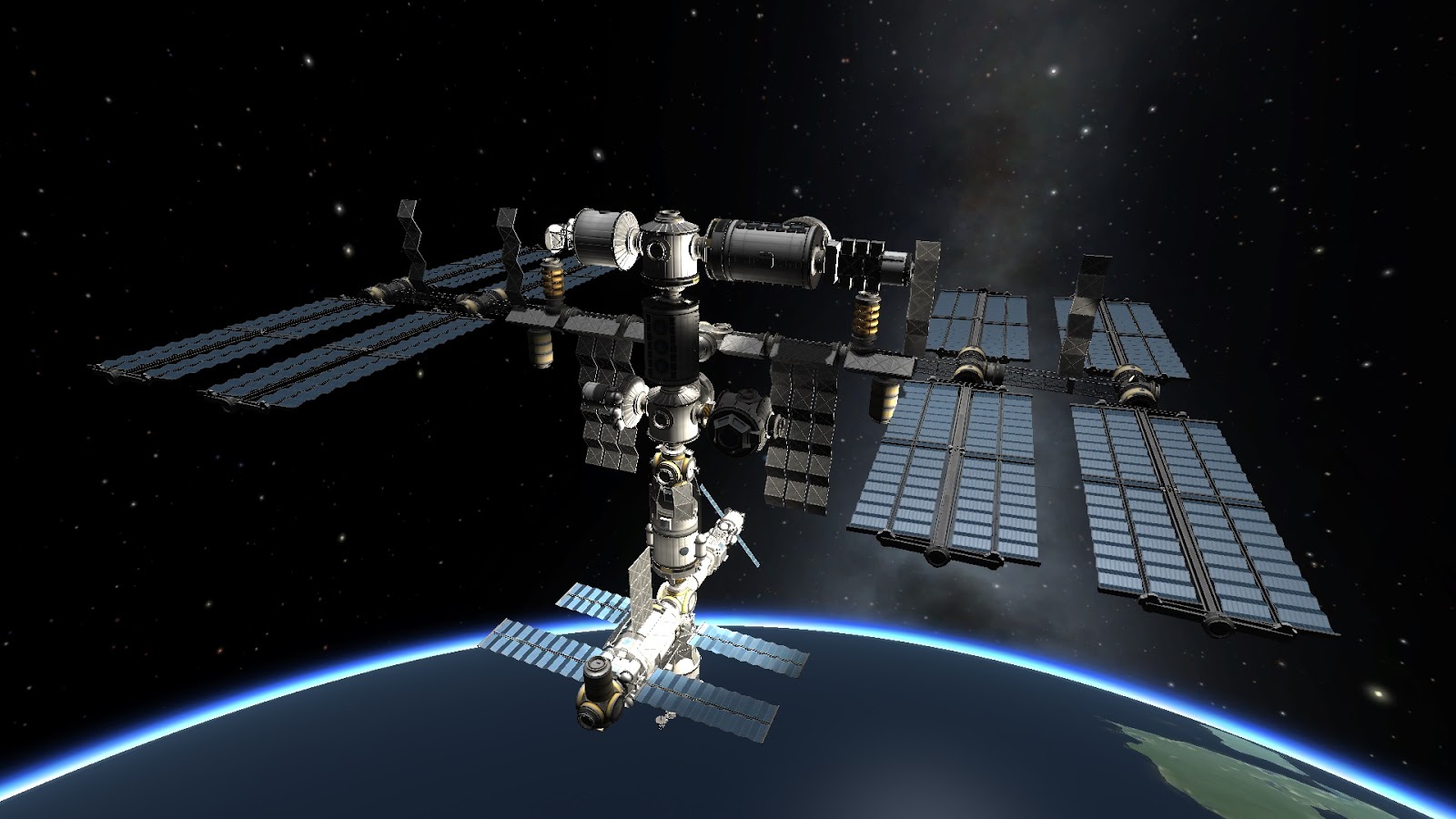
Kerbal Space Program is a great space simulation game where you can build spaceships and space planes. You then launch them and fly (or attempt) to loads of other planets that are around the Kerbol solar system. Some of the planets have loads of moons. The game does have a steep learning curve, but it is really great fun.
Kerbal Space Program allows you to build ships and then fly them around a large solar system. You need to add manoeuvre nodes to change your orbit around so that you can get intercepts on planets. You can build things such as landers, space planes, bases which go on other planets, space stations, satellites and probes, rovers and many more. You can dock aircraft and rockets to space stations, which is pretty cool (and fun).
There are three game modes; sandbox, which allows you to have all the parts and unlimited money. There is then scientific mode, which is basically sandbox but the Development and Research centre is open, and you can collect Science, and then career mode. This is where you have to pay for everything, and research stuff to get all the parts. You also have to advertise your launch and business.
There are two modes to build spacecraft; the VAB, where you build tall rockets and space station parts, and the SPH, where you build things such as space planes. It easy to build stuff, but hard to actually make it work. On the right you can find the staging menu; this is where you re-arrange the stages to select when boosters decouple and when boosters start up. This is where I usually get messed up.
After you have made your rocket, you click the launch button, and then it goes to your launch pad. I recommend you do all the tutorials as they really help. Make sure you hit the T key to switch on SAS, which will help you control your rocket. You launch your rocket, and then you have to get into orbit.
Then, you have to get into an intercept with the planet or moon you want to go to; in my case the Mun. Add a manoeuvring mode onto your orbit. Make sure the it is in front of the planet you want to go to, as you need to intercept it.
Adding maneuvering node to get to the Mun
When you have your intercept, click on the manoeuvring button to the left of the navball, and the ship automatically points towards it. When you reach the node, fire your engines for the specified time. You can find the time to the node and the estimated firing time to the right of the navball.
Once you get drawn into the planets gravity, you will need to fire retrograde to slow yourself down into an orbit. Make sure that you don’t crash into the planet!
Firing retrograde
Once your in a stable orbit, add a manoeuvring node that will take you down to the sunny side of the planet. Click on the manoeuvring button to the right of the navball to point where you need to go for your manoeuvre.
Once you have executed the manoeuvre, click once again on the retrograde button. Once your at around 6000 metres, fire your boosters. You will be moving sideways as well as down, so you need to get both the horizontal and vertical speed down. Make sure you touch down gently, so that you don’t kill your Kerbals.
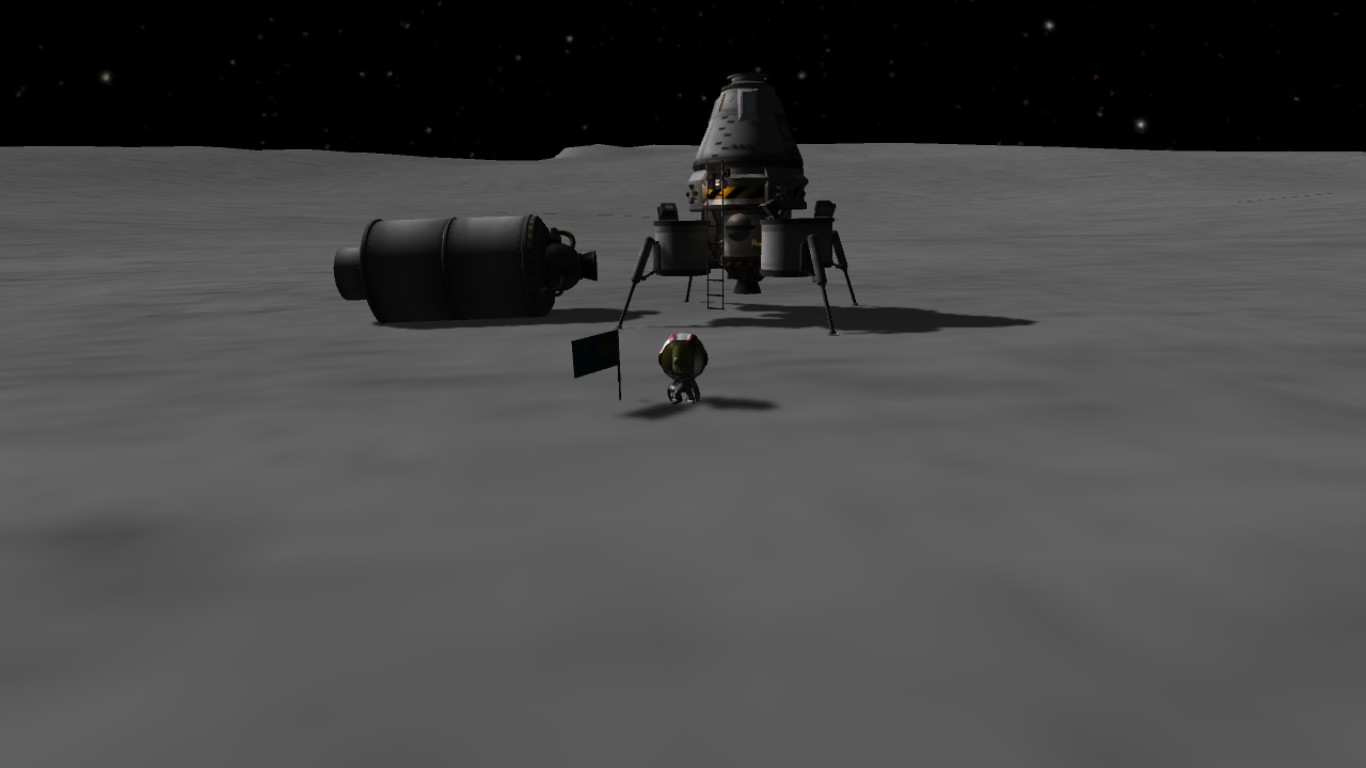
A landed lander!
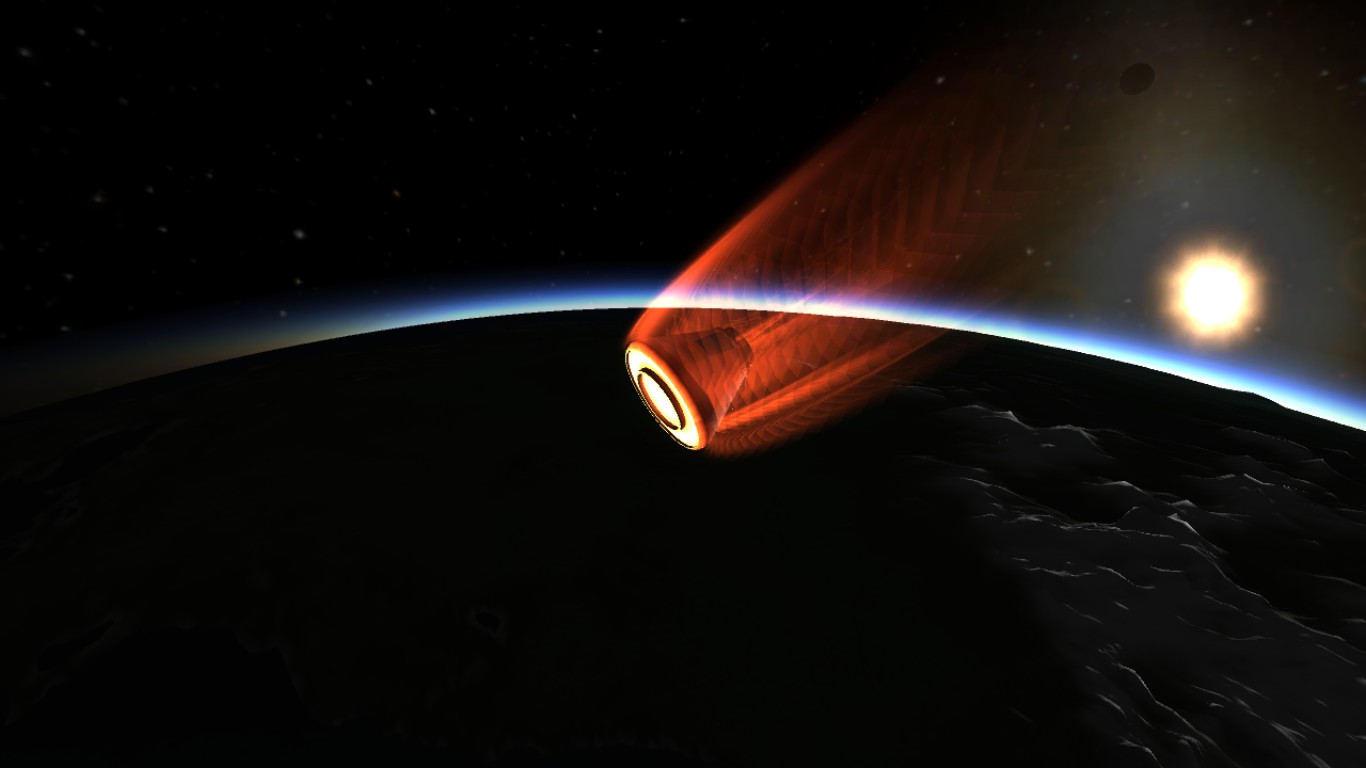
Now you have landed, EVA your Kerbal and plant a flag. Gather some data, and then get back into you lander. Get into an orbit and fly back to Kerbin, and re-enter. Make sure you don’t release your parachutes too early!
Re-entering Kerbin’s atmosphere
After you have done all this, you have completed your first mission!
You can check out loads of tutorials of how to land on specific planets here, on the Kerbal Space Program wiki. You can also check out Scott Manley on Youtube for some great video tutorials.